
IMPRIMANTE DESKTOP
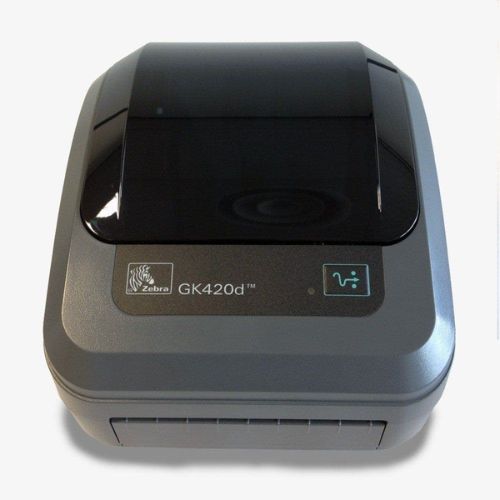
Zebra GK420t Support
Drivere, documentație, tutoriale, depanare și produse compatibile pentru modelul selectat.
ModelGK420t
BrandZebra
StareLegacy
Ai nevoie de ajutor?
Întreabă asistentul AutoID AI despre Zebra GK420t
Vezi pagina de suport
Contactează un tehnic AutoIDCompletează formularul, iar echipa AutoID poate reveni cu informații pentru solicitarea ta.
Getting Started
Pornește corect cu GK420t
The Setup guidelines below will take you to English documentation. You can access the localized User Guides in the DOCUMENTATION tab. IMPORTANT! Do not connect your printer to a computer yet! If you connected your printer to a computer via USB before driver installation, the printer might appear as an unknown (unspecified) device in “Devices and Printers.” If necessary, follow these recovery steps before proceeding to Step 1. 1. Download and install the Zebra Setup Utilities (ZSU) printer configuration utility. How to download and install ZSUWindows Printer Driver v5 is included with the ZSU download. To install the driver, select "Install New Printer" on the ZSU interface and proceed with steps 12 to 15 in this article. 2. Connect the printer to a USB port on your computer and power it up. See how you can use Zebra Setup Utilities to configure your printer for a wired or wireless connection. 3. Load media (media usually means labels, but it also includes tag stock, receipt paper, and other things that can be printed on). You can watch the video in the VIDEOS tab.The media settings must match the actual media that you are using. How to identify media type. 4. When using thermal transfer media, load the ribbon. You can watch the videos in the VIDEOS tab. How to find out if you have thermal transfer media? Do a media scratch test. 5. Print a test label. 6. Calibrate media sensors. When changing the size or type of media. If printing issues are observed, such as skipped labels, vertical image/label drift, or media out errors. 7. The printer settings must match the actual supplies that you are using for your print job and the options on your printer. Adjust the printer settings as necessary using Zebra Setup Utilities software or Windows Printer Driver v5.
Downloads
Drivere, firmware și utilitare
Resursele oficiale asociate modelului păstrează versiunea și destinația publicată de producător.
Vezi toate downloads →Drivere 3Firmware 2UtilityRelease Notes 2ApplicationDownload
Release Notes
Detalii →Information about CUPS Driver for label printers
Drivere
Detalii →Other Drivers
Firmware
Detalii →V61.17.17Z
Drivere
Detalii →Windows Printer Driver v5
OPERATING SYSTEM versions: Windows 10/11, Windows Server 2019/2022/2025 For Windows running on machines with x86 / x64 processors. The driver does not support Windows running on devices with Arm processors.
Release Notes
Detalii →Zebra OPOS Driver Version 1.14.1.143 Release Notes
Drivere
Detalii →Zebra Printer Setup Utilities for Windows
Use this software to configure your printer after Printer Driver installation.
Documentation
Ghiduri și documentație
Manuale, ghiduri, datasheet-uri și cataloage tehnice asociate modelului.
Vezi toată documentația →GuideDatasheetQuick StartService Manual
Video
How-to Videos
Tutoriale și proceduri video asociate modelului, inclusiv resurse oficiale Zebra.
Vezi toate videoclipurile →How-toCleaning the Exterior and Sensors
Troubleshooting
Depanare
Articole tehnice în limba română asociate modelului.
Vezi toate articolele →GK和GX系列桌面打印机首次设置及新手入门
GK和GX系列桌面打印机首次设置及新手入门
Software & Apps
Applications / Developer Tools
Aplicații și instrumente oficiale care pot completa funcționalitatea acestui model.
Vezi toate aplicațiile →Applications 11Developer Tools 2
SDK
Detalii →Browser Print Support
For developers to quickly add USB or Network based printing support to browser-based apps on Windows 7, Windows 10 and Mac OSX systems (completion of a brief form is required to access this tool).
Software
Detalii →Enterprise Connector Support
Solution for printing directly from Oracle® eBusiness Suite (eBS) application.
Software
Detalii →ZDownloader Support
Firmware Download Utility to upload Printer OS, firmware and service packs to your barcode label printer (see release note for supported printers).
Software
Detalii →Zebra Nucleus Connector
Recommended Printer Configuration Utility for barcode label printers (see release note for supported printers).
Software
Detalii →Zebra Printer Setup Utilities
Recommended Printer Configuration Utility for barcode label printers (see release note for supported printers).
Software
Detalii →ZebraDesigner 2 Software Support
Read detailed information on the end of service for ZebraDesigner version 2 editions.
Software
Detalii →ZebraDesigner 3 Label Design Software
ZebraDesigner version 3.3 supports the migration to Thales licensing, and to activate the Professional edition, your license must be the Customer ID and License Key combination 18-digit license numbers starting 3467 cannot be activated in this version of ZebraDesigner. Both the FREE ZebraDesigner Essentials 3 and PAID ZebraDesigner Professional 3 editions will be installed. The application will initially run as the free Essentials edition. At any time, you may choose to start a 30-day trial of the Professional edition or activate a purchased license key. After the 30-day trial has expired, the software will revert to the free Essentials edition Purchase an Activation License Key
Software
Detalii →ZebraNet Bridge Enterprise Support
Remote management of Zebra printers from a single PC screen.
Link către documentația dezvoltatorului
Detalii →ZPL II, ZBI 2, Set-Get-Do, Mirror, WML Programming Guide
Additional Resources
SKU-uri disponibile și produse compatibile
SKU
GK42-202220-000Imprimanta etichete Zebra GK420D GK42-202220-000
Zebra GK420D GK42-202220-000 - imprimantă de etichete, termică directă, rezoluție: 8 puncte/mm (203 dpi), lățime suport (max.): 108 mm, viteză (max.): 127 mm/s, USB, server de i…
AutoID1Distribuție0
SKU
GK42-102220-000Imprimanta etichete Zebra GK420T GK42-102220-000
Zebra GK420T GK42-102220-000 - imprimantă de etichete, transfer termic, rezoluție: 8 puncte/mm (203 dpi), lățime suport (max.): 108 mm, viteză (max.): 127 mm/s, USB, server de i…
AutoID0Distribuție0
SKU
GK42-102520-000Imprimanta etichete Zebra GK420T GK42-102520-000
Zebra GK420T GK42-102520-000 - imprimantă de etichete, transfer termic, rezoluție: 8 puncte/mm (203 dpi), EU and UK Cords, EPL, ZPLII, USB, Serial, Centronics Parallel (Înlocuit…
AutoID0Distribuție0
SKU
105934-030Rama frontala standard Zebra 105934-030
Zebra 105934-030 - Rama frontala standard (transfer termic) pentru Zebra GK420t GX420t/430t
AutoID20Distribuție0
SKU
105934-037Cap imprimare Termica directa Zebra 105934-037
Zebra 105934-037 - Cap de imprimare, 203dpi (Termica Directa) pentru imprimante Zebra GK420
AutoID17Distribuție51
SKU
105934-099Rulment Rola Platan Zebra 105934-099
Rulment Rola Platan Zebra 105934-099 pentru imprimante termice Zebra (GK420d, GK420t, GT800, GX420t, GX430t, ZD500, ZD500R). Îmbunătățește rotația rolei platan și calitatea impr…
AutoID9Distribuție3
SKU
P1027135-039Rola Platan GK420/GX420 Zebra P1027135-039
Rola platan Zebra GK420/GX420 P1027135-039, componentă standard de înaltă calitate pentru imprimare uniformă. Compatibilă cu GK420/GX420, durabilă și ușor de instalat.
AutoID3Distribuție124
SKU
P1027135-003Kit Senzor Distanta Fix GX420t Zebra P1027135-003
Kit Senzor Distanță Fix Zebra P1027135-003 pentru GX420t, facilitează poziționarea precisă a etichetelor în imprimarea termică transfer.
AutoID2Distribuție6
SKU
105934-132Kit Cabluri GK420t Zebra 105934-132
Kit cabluri Zebra 105934-132 pentru reparații GK420t, 5 cabluri FFC, ideal pentru întreținere și durabilitate în funcționarea imprimantei termice Zebra GK420t.
AutoID2Distribuție3
SKU
105934-053Sursa de alimentare 60W Zebra 105934-053
Sursa de alimentare Zebra 60W, 24V, cu cabluri SUA și UE, compatibilă cu imprimantele GK420D, GK420T, GT800, ZD410D, ZD421D, ZD421T. Performanță fiabilă și constantă.
AutoID1Distribuție46
SKU
105934-061Placa identificare GK420t Zebra 105934-061
Zebra 105934-061 - Plăcuță de identificare, GK420t (transfer termic)
AutoID1Distribuție13
SKU
G105850-003Cablu Serial RS232 Zebra G105850-003
Cablu Serial RS232 Zebra G105850-003, 6 ft., DB-9 la DB-9. Compatibil cu imprimante Zebra GC420d/t, GK420d/t, GX420d/t, GX430t, ZD410d, TLP2824 Plus și altele.
AutoID1Distribuție4
SKU
105934-038Cap de imprimare 203 dpi Zebra 105934-038
Zebra 105934-038 - Cap de imprimare, 203 dpi (transfer termic) GK420/ZD500
AutoID1Distribuție0
SKU
P1027135-020Kit Panou Spate U/S/P (TT) Zebra P1027135-020
Kit Panou Spate Zebra P1027135-020 pentru GK420t, GX420t și GX430t. Asigură funcționarea optimă și prelungirea duratei de viață a imprimantei. Ușor de instalat.
AutoID1Distribuție0
SKU
P1027135-040Rola Platan TT Zebra P1027135-040
Rola Platan Zebra P1027135-040 pentru GK420, GX420, GX430, ZD500, și ZD500R. Imprimare clară și aliniere precisă. Ideală pentru medii comerciale și industriale.
AutoID0Distribuție127
SKU
105934-059Rulmenti Rola Platan Zebra 105934-059
Kit rulmenți rola platan Zebra 105934-059, compatibil cu GK420d, GK420t și GX420d. Asigură funcționarea lină și durabilitatea imprimantei termice directe.
AutoID0Distribuție106
SKU
105950-030Pachet 5x Cablu de alimentare 240V UK C13 Zebra 105950-030
Pachet de 5 cabluri de alimentare Zebra 105950-030, 240V UK C13, pentru alimentarea echipamentelor Zebra. Conector C13 cu 3 pini, fiabil pentru medii industriale.
AutoID0Distribuție44
SKU
G105950-054Cablu Serial RS232 Zebra G105950-054
Cablu Serial RS232 Zebra G105950-054, DB-9 to DB-9, 6 ft, Null Modem. Compatibil cu GK420, ZD421, ZD620, ZD621, ZT510. Conexiune stabilă și fiabilă.
AutoID0Distribuție19
SKU
ZKDU-001-00Tastatura ZPL/EPL Zebra ZKDU-001-00
Tastatura Zebra ZKDU-001-00, compatibilă ZPL/EPL, operare directă pentru imprimante Zebra. Simplifică procesul de imprimare și crește eficiența.
AutoID0Distribuție18
SKU
300792-002Cablu de buton comutare GX430/GK420 Zebra 300792-002
Cablu de buton comutare Zebra GX430/GK420, 300792-002, FFC, ideal pentru întreținerea și repararea imprimantelor, asigură conectivitate fiabilă.
AutoID0Distribuție14
SKU
P1027135-050Kit capac senzor fix GK420t/GX430t Zebra P1027135-050
Kit capac senzor fix Zebra P1027135-050, compatibil cu imprimantele GK420t, GX420t și GX430t, include fereastră media, ideal pentru reparații și întreținerea performanței imprim…
AutoID0Distribuție13
SKU
P1027135-045Kit Dispenser Zebra P1027135-045
Zebra P1027135-045 - Kit dispenser GX430T
AutoID0Distribuție8
SKU
P1027135-016KITGK420 MLB U/EZBI
KIT,GK420 MLB U/E,ZBI
AutoID0Distribuție3
SKU
P1027135-046Ribbon Carriage 230 DPI Zebra P1027135-046
Ribbon Carriage 203 DPI Zebra P1027135-046, compatibil cu GK420t și GX420t. Asigură alimentare eficientă a ribonului pentru imprimări clare și precise.
AutoID0Distribuție3
SKU
105934-004Comutator de alimentare Zebra 105934-004
Comutator de alimentare Zebra 105934-004 pentru imprimante GK420t, GX420t, GX430t. Compatibil cu tehnologia Thermal Transfer, durabil și ideal pentru medii industriale.
AutoID0Distribuție2
SKU
P1027135-013Kit Senzor Marcaj Negru GK420t Zebra P1027135-013
Kit Senzor Marcaj Negru Zebra P1027135-013 - senzor fix pentru detectarea marcajelor negre și spațiilor pe etichete, compatibil cu imprimanta GK420t, ideal pentru imprimare prec…
AutoID0Distribuție1
SKU
105850-027Adaptor port paralel Zebra 105850-027
KIT,CEN36F-DB25M Parallel Adapter
AutoID0Distribuție0
SKU
105850-026Adaptor port serial Zebra 105850-026
Adaptor port serial Zebra 105850-026 pentru conectarea imprimantelor Zebra la computere sau dispozitive compatibile. Conexiune stabilă și transfer rapid de date.
AutoID0Distribuție0
SKU
105934-048Balama capac dreapta si stanga (transfer termic)
Balama capac dreapta si stanga (transfer termic)
AutoID0Distribuție0
SKU
105950-029Cablu de alimentare Australia C13 (5 buc) Zebra 105950-029
Cablu de alimentare Zebra 105950-029 C13, 3 pini, 240V Australia. Set de 5 bucăți, compatibil imprimante Zebra. Siguranță și fiabilitate garantată.
AutoID0Distribuție0
SKU
105950-014Cablu de alimentare US IEC320C13 (5 buc) Zebra 105950-014
Cablu alimentare Zebra 105950-014 IEC320C13, 120V US. Set de 5 bucăți, compatibil imprimante Zebra. Siguranță și fiabilitate garantată.
AutoID0Distribuție0
SKU
105950-015Cablu de alimentare Zebra 105950-015
Cablu de alimentare Zebra 105950-015, 220V, tip Euro IEC320C13, set de 5 cabluri. Compatibil pentru dispozitive europene, ideal pentru medii industriale.
AutoID0Distribuție0
SKU
G105850-007Cablu Interfata USB imprimante Zebra G105850-007
Cablu USB Zebra G105850-007, 3m, compatibil cu imprimante Zebra desktop și industriale, conectivitate A-B de înaltă calitate.
AutoID0Distribuție0
SKU
105850-006Cablu USB imprimanta Zebra 105850-006
Zebra 105850-006 - Cablu interfata USB, 1.8 m (A la B)
AutoID0Distribuție0
SKU
105950-087CD-ROM Service G-Series
CD-ROM, Service, G-Series
AutoID0Distribuție0
SKU
P1027135-049KIT CD-ROM UTILIZATOR SERIA G R2
KIT, CD-ROM UTILIZATOR SERIA G R2
AutoID0Distribuție0
SKU
105934-151KIT PACHET DE TRANSPORT GX/GK/GC TT
KIT PACHET DE TRANSPORT GX/GK/GC TT
AutoID0Distribuție0
SKU
105934-024Kit picioare de cauciu Zebra 105934-024
Kit Picioare de Cauciuc Zebra 105934-024 (set de 5). Compatibil cu GK420d, GK420t, GX420, GX430, ZD500. Stabilitate, protecție, durabilitate pentru imprimante.
AutoID0Distribuție0
SKU
P1027135-048KIT RIBBON CORE Seria G si Seria GT (Set de 50)
KIT RIBBON CORE Seria G si Seria GT (Set de 50)
AutoID0Distribuție0
SKU
P1027135-014Kit Senzor Ribbon (TT) Zebra P1027135-014
Kit senzor ribbon Zebra P1027135-014 - Monitorizare ieșire ribbon pentru imprimare TT, prevenind întreruperile și menținând calitatea imprimării în medii industriale.
AutoID0Distribuție0
SKU
105934-002KITFEREASTRa MEDIA (TT)
KITFEREASTRa MEDIA (TT)
AutoID0Distribuție0
SKU
P1027135-015KITGK420 MLB U/S/PZBI
KIT,GK420 MLB U/S/P,ZBI
AutoID0Distribuție0
SKU
P1027135-043KITMOTOR 420T
KIT,MOTOR 420T
AutoID0Distribuție0
SKU
105934-042Senzor cap sus (transfer termic)
Senzor cap sus (transfer termic)
AutoID0Distribuție0
SKU
105934-076Siguranta interfata 1A
Siguranta interfata, 1A
AutoID0Distribuție0
SKU
105934-075Zebra 105934-075
Back Panel, USB/Ethernet (Thermal Transfer)
AutoID0Distribuție0
SKU
105934-129Zebra 105934-129
KIT, REPAIR HUB,RIGHT,TLP (20)
AutoID0Distribuție0
SKU
P1027135-007Zebra P1027135-007
KIT,PRINT MECH FIXED SNSR (TT)
AutoID0Distribuție0
SKU
Z1AE-GSER-5C0Zebra OneCare Essential 5 Years GSER Z1AE-GSER-5C0
Zebra OneCare, Essential, Purchased within 30 days of Printer, G-Series, 5 Years, Comprehensive
AutoID0Distribuție9999
SKU
Z1AV-DESK-2Zebra OneCare Onecare SV 2 Years DESK Z1AV-DESK-2
Zebra OneCare, SValue, Purchased within 30 days of Printer, 5 Day TAT, Applicable to Desktop GC, GK, GT, LP/TLP, ZD120, ZD4 Series, 2 Years, Non-Comprehensive
AutoID0Distribuție9999
SKU
Z1A5-DESK-3Zebra OneCare TSS 3 Ani DESK Z1A5-DESK-3
Zebra OneCare TSS 3 ani pentru imprimante desktop. Suport tehnic 8x5 și actualizări software complete. Soluție ideală pentru performanță și fiabilitate pe termen lung.
AutoID0Distribuție9999
SKU
ZS3-ZECN-100Suport Enterprise Connector Zebra OneCare TSS ZS3-ZECN-100
Zebra ZS3-ZECN-100 – suport 1 an pentru Zebra Enterprise Connector. Asistență software 8/5 prin OneCare TSS pentru integrarea cu Oracle BI Publisher.
AutoID0Distribuție0
SKU
Z1BE-GSER-1C0Zebra OneCare Essential 1 Year GSER Z1BE-GSER-1C0
Zebra OneCare, Essential, Purchased after 30 days of Printer, G-Series, 1 Years, Comprehensive
AutoID0Distribuție0
SKU
Z1RE-GSER-1C0Zebra OneCare Essential 1 Year GSER Z1RE-GSER-1C0
Zebra OneCare, Essential, Renewal, G-Series, 1 Years, Comprehensive
AutoID0Distribuție0
SKU
Z1AE-GSLL-1C0Zebra OneCare Essential 1 Year GSLL Z1AE-GSLL-1C0
Zebra OneCare, Essential, Purchased within 30 days of Printer, G-Series Linerless, 1 Year, Comprehensive
AutoID0Distribuție0
SKU
Z1RE-GSLL-1C0Zebra OneCare Essential 1 Year GSLL Z1RE-GSLL-1C0
Zebra OneCare, Essential, Renewal, G-Series Linerless, 1 Year, Comprehensive
AutoID0Distribuție0
SKU
Z1AE-GSER-2C0Zebra OneCare Essential 2 Years GSER Z1AE-GSER-2C0
Zebra OneCare, Essential, Purchased within 30 days of Printer, G-Series, 2 Years, Comprehensive
AutoID0Distribuție0
SKU
Z1RE-GSER-2C0Zebra OneCare Essential 2 Years GSER Z1RE-GSER-2C0
Zebra OneCare, Essential, Renewal, G-Series, 2 Years, Comprehensive
AutoID0Distribuție0
SKU
Z1RE-GSLL-2C0Zebra OneCare Essential 2 Years GSLL Z1RE-GSLL-2C0
Zebra OneCare, Essential, Renewal, G-Series Linerless, 2 Years, Comprehensive
AutoID0Distribuție0
SKU
Z1AE-GSER-3C0Zebra OneCare Essential 3 Years GSER Z1AE-GSER-3C0
Zebra OneCare, Essential, Purchased within 30 days of Printer, G-Series, 3 Years, Comprehensive
AutoID0Distribuție0
SKU
Z1BE-GSER-3C0Zebra OneCare Essential 3 Years GSER Z1BE-GSER-3C0
Zebra OneCare, Essential, Purchased after 30 days of Printer, G-Series, 3 Years, Comprehensive
AutoID0Distribuție0
SKU
Z1BE-GSER-5C0Zebra OneCare Essential 5 Years GSER Z1BE-GSER-5C0
Zebra OneCare, Essential, Purchased after 30 days of Printer, G-Series, 5 Years, Comprehensive
AutoID0Distribuție0
SKU
Z1AE-GSLL-5C0Zebra OneCare Essential 5 Years GSLL Z1AE-GSLL-5C0
Zebra OneCare, Essential, Purchased within 30 days of Printer, G-Series Linerless, 5 Years, Comprehensive,
AutoID0Distribuție0
SKU
Z1RV-DESK-1Zebra OneCare Onecare SV 1 Year DESK Z1RV-DESK-1
Zebra OneCare, SValue, Renewal, 5 Day TAT, Applicable to Desktop GC, GK, GT, LP/TLP, ZD120, ZD4 Series, 1 Years, Non-Comprehensive
AutoID0Distribuție0
SKU
Z1AV-DESK-3Zebra OneCare Onecare SV 3 Years DESK Z1AV-DESK-3
Zebra OneCare, SValue, Purchased within 30 days of Printer, 5 Day TAT, Applicable to Desktop GC, GK, GT, LP/TLP, ZD120, ZD2x0, ZD888, ZP888 ZD4 Series, 3 Years, Non-Comprehensive
AutoID0Distribuție0
SKU
Z1A1-GSER-1C0Zebra OneCare Onsite 1 Year GSER Z1A1-GSER-1C0
Zebra OneCare, Essential, Purchased within 30 days of Printer, Next Business Day Onsite (select counties only), G-Series, 1 Years, Comprehensive
AutoID0Distribuție0
SKU
Z1A4-GSER-1C0Zebra OneCare Onsite 1 Year GSER Z1A4-GSER-1C0
Zebra OneCare, Select, Purchased within 30 days of Printer, Same Business Day Onsite (select counties only), G-Series, 1 Years, Comprehensive
AutoID0Distribuție0
SKU
Z1B1-GSER-1C0Zebra OneCare Onsite 1 Year GSER Z1B1-GSER-1C0
Zebra OneCare, Essential, Purchased after 30 days of Printer, Next Business Day Onsite (select counties only), G-Series, 1 Year, Comprehensive
AutoID0Distribuție0
SKU
Z1B4-GSER-1C0Zebra OneCare Onsite 1 Year GSER Z1B4-GSER-1C0
Zebra OneCare, Select, Purchased after 30 days of Printer, Same Business Day Onsite (select counties only), G-Series, 1 Year, Comprehensive
AutoID0Distribuție0
SKU
Z1R1-GSER-1C0Zebra OneCare Onsite 1 Year GSER Z1R1-GSER-1C0
Zebra OneCare, Essential, Renewal, Next Business Day Onsite (select counties only), G-Series, 1 Years, Comprehensive
AutoID0Distribuție0
SKU
Z1R4-GSER-1C0Zebra OneCare Onsite 1 Year GSER Z1R4-GSER-1C0
Zebra OneCare, Select, Renewal, Same Business Day Onsite (select counties only), G-Series, 1 Years, Comprehensive
AutoID0Distribuție0
SKU
Z1R1-GSER-2C0Zebra OneCare Onsite 2 Years GSER Z1R1-GSER-2C0
Zebra OneCare, Essential, Renewal, Next Business Day Onsite (Essential counties only), G-Series, 2 Years, Comprehensive
AutoID0Distribuție0
SKU
Z1R4-GSER-2C0Zebra OneCare Onsite 2 Years GSER Z1R4-GSER-2C0
Zebra OneCare, Select, Renewal, Same Business Day Onsite (select counties only), G-Series, 2 Years, Comprehensive
AutoID0Distribuție0
SKU
Z1A1-GSER-3C0Zebra OneCare Onsite 3 Years GSER Z1A1-GSER-3C0
Zebra OneCare, Essential, Purchased within 30 days of Printer, Next Business Day Onsite (select counties only), G-Series, 3 Years, Comprehensive
AutoID0Distribuție0
SKU
Z1A4-GSER-3C0Zebra OneCare Onsite 3 Years GSER Z1A4-GSER-3C0
Zebra OneCare, Select, Purchased within 30 days of Printer, Same Business Day Onsite (select counties only), G-Series, 3 Years, Comprehensive
AutoID0Distribuție0
SKU
Z1B1-GSER-3C0Zebra OneCare Onsite 3 Years GSER Z1B1-GSER-3C0
Zebra OneCare, Essential, Purchased after 30 days of Printer, Next Business Day Onsite (select counties only), G-Series, 3 Year, Comprehensive
AutoID0Distribuție0
SKU
Z1B4-GSER-3C0Zebra OneCare Onsite 3 Years GSER Z1B4-GSER-3C0
Zebra OneCare, Select, Purchased after 30 days of Printer, Same Business Day Onsite (select counties only), G-Series, 3 Year, Comprehensive
AutoID0Distribuție0
SKU
Z1BS-GSER-1C0Zebra OneCare Select 1 Year GSER Z1BS-GSER-1C0
Zebra OneCare, Select, Purchased after 30 days of Printer, Advanced Exchange (select countries only), G-Series, 1 Years, Comprehensive
AutoID0Distribuție0
SKU
Z1RS-GSER-1C0Zebra OneCare Select 1 Year GSER Z1RS-GSER-1C0
Zebra OneCare, Select, Renewal, Advanced Exchange (select countries only), G-Series, 1 Years, Comprehensive
AutoID0Distribuție0
SKU
Z1RS-GSER-2C0Zebra OneCare Select 2 Years GSER Z1RS-GSER-2C0
Zebra OneCare, Select, Renewal, Advanced Exchange (select countries only), G-Series, 2 Years, Comprehensive
AutoID0Distribuție0
SKU
Z1AS-GSER-3C0Zebra OneCare Select 3 Years GSER Z1AS-GSER-3C0
Zebra OneCare, Select, Purchased within 30 days of Printer, Advanced Exchange (select countries only), G-Series, 3 Years, Comprehensive
AutoID0Distribuție0
SKU
Z1BS-GSER-3C0Zebra OneCare Select 3 Years GSER Z1BS-GSER-3C0
Zebra OneCare, Select, Purchased after 30 days of Printer, Advanced Exchange (select countries only), G-Series, 3 Years, Comprehensive
AutoID0Distribuție0
SKU
Z1AS-GSER-5C0Zebra OneCare Select 5 Years GSER Z1AS-GSER-5C0
Zebra OneCare, Select, Purchased within 30 days of Printer, Advanced Exchange (select countries only), G-Series, 5 Years, Comprehensive
AutoID0Distribuție0
SKU
Z1A5-DESK-1Zebra OneCare TSS 1 An DESK Z1A5-DESK-1
Zebra OneCare TSS 1 an pentru imprimante desktop. Suport tehnic 8x5 și update-uri software complete. Contract de service pentru performanță constantă.
AutoID0Distribuție0
SKU
Z1B5-DESK-1Zebra OneCare TSS 1 An DESK Z1B5-DESK-1
Zebra OneCare TSS 1 an pentru imprimante desktop pre-owned. Suport tehnic 8x5 și update-uri software complete. Contract dedicat echipamentelor recondiționate.
AutoID0Distribuție0
SKU
Z1R5-DESK-1Zebra OneCare TSS 1 An DESK Z1R5-DESK-1
Zebra OneCare TSS 1 an pentru imprimante desktop. Reînnoire contract cu suport tehnic 8x5 și actualizări software complete pentru performanță optimă.
AutoID0Distribuție0
SKU
ZS3-ZBI1-100Zebra OneCare TSS 1 Year ZBI1 ZS3-ZBI1-100
Technical & Software Support Contract 8/5, 1 Year, ZBI 2.0 Enablement Kit for 1 Printer
AutoID0Distribuție0
SKU
ZS3-ZBI2-100Zebra OneCare TSS 1 Year ZBI2 ZS3-ZBI2-100
Technical & Software Support Contract 8/5, 1 Year, ZBI 2.0 Enablement Kit for 5 Printers
AutoID0Distribuție0
SKU
ZS3-ZBI3-100Zebra OneCare TSS 1 Year ZBI3 ZS3-ZBI3-100
Technical & Software Support Contract 8/5, 1 Year, ZBI 2.0 Enablement Kit for 25 Printers
AutoID0Distribuție0
SKU
Z1R5-DESK-2Zebra OneCare TSS 2 Ani DESK Z1R5-DESK-2
Zebra OneCare TSS 2 ani pentru imprimante desktop. Suport tehnic 8x5 și update-uri software complete. Reînnoire contract pentru performanță optimă.
AutoID0Distribuție0
SKU
Z1B5-DESK-3Zebra OneCare TSS 3 Ani DESK Z1B5-DESK-3
Zebra OneCare TSS 3 ani pentru imprimante desktop pre-owned. Suport tehnic 8x5 și update-uri software complete. Contract dedicat echipamentelor recondiționate.
AutoID0Distribuție0
SKU
Z1A5-DESK-5Zebra OneCare TSS 5 Ani DESK Z1A5-DESK-5
Zebra OneCare TSS 5 ani pentru imprimante desktop. Suport tehnic 8x5 și update-uri software complete. Soluție fiabilă și economică pentru performanță constantă.
AutoID0Distribuție0
SKU
P1109020Licenta Zebra Designer 3 PRO P1109020
Licență Zebra Designer 3 PRO P1109020, software avansat pentru design etichete, suport baze de date și scriptare. Ideal pentru gestionare etichete industriale.
AutoID0Distribuție44
SKU
48735-120ZebraNet Bridge Enterprise Zebra 48735-120
ZebraNet Bridge Enterprise, gestionare centralizată pentru 100+ imprimante Zebra, eficiență și productivitate crescută, configurare și monitorizare ușoară.
AutoID0Distribuție2
SKU
P1109127Licenta Zebra Designer PRO 3 P1109127
Licență Zebra Designer PRO 3 P1109127, activare 1 PC, livrare prin e-mail. Software avansat pentru design etichete, suport baze de date și scriptare.
AutoID0Distribuție0
SKU
48734-120Software Zebra ZebraNet Bridge Enterprise 48734-120
ZebraNet Bridge Enterprise 48734-120 – software pentru gestionarea centralizată a 1–100 imprimante Zebra. Administrare de la distanță eficientă și sigură.
AutoID0Distribuție0
SKU
P1038188Zebra Enterprise Connector JD Edwards OneWorld P1038188
Zebra P1038188 – conector ZebraLink pentru JD Edwards OneWorld. Integrare directă cu imprimante Zebra pentru tipărire automată din ERP Oracle.
AutoID0Distribuție0
SKU
P1038185Zebra Enterprise Connector Oracle WMS P1038185
Zebra P1038185 – conector ZebraLink pentru Oracle WMS. Imprimare directă a etichetelor și documentelor din sistemele Oracle de gestiune depozit.
AutoID0Distribuție0
SKU
P1038186Zebra Enterprise Connector pentru Oracle Retail/SIM P1038186
Zebra P1038186 – conector ZebraLink pentru Oracle Retail/SIM. Integrare directă a imprimantelor Zebra în fluxurile Oracle pentru retail și inventar.
AutoID0Distribuție0
SKU
P1006469ZebraLink Enterprise Connector for Oracle BI Publisher P1006469
Zebra P1006469 – conector ZebraLink pentru Oracle BI Publisher. Integrare rapidă și fiabilă între imprimante Zebra și rapoartele Oracle.
AutoID0Distribuție0
SKU
48733-120ZebraNet Bridge Enterprise Zebra 48733-120
ZebraNet Bridge Enterprise software, gestionează până la 50 imprimante Zebra, configurare și monitorizare centralizată, crește productivitatea și eficiența.
AutoID0Distribuție0
SKU
800132-002Ribon Ceară Zebra 800132-002, 5319 Performance, 57 mm x 74 m
Zebra 800132-002 este un ribon de ceară 5319 Performance pentru imprimare prin transfer termic, cu dimensiunea de 57 mm x 74 m și miez de 12 mm. Formula 5319 este optimizată pen…
AutoID1296Distribuție3384
SKU
05095GS11007Ribon Rasina 110mm x 74m 5095 Zebra 05095GS11007
Ribon de rășină Zebra 5095 110mm x 74m, 12mm (0.5in) core, performanță înaltă pentru etichetare rezistentă la chimicale și abraziune. Compatibil cu imprimante desktop Zebra. 12 …
AutoID76Distribuție15768
SKU
02300GS06407Ribon Ceara 64mm x 74m Zebra 02300GS06407
Ribon de ceară Zebra 2300 Standard 64mm x 74m, miez 12 mm, 12 role/cutie, pentru imprimante Zebra, etichete de hârtie și aplicații logistice.
AutoID25Distribuție21250
SKU
02300GS11007Ribbon Ceara 110 mm x 74 m 2300 Standard Zebra 02300GS11007
Zebra 02300GS11007 – ribbon ceară 110mm x 74m, nucleu 12mm, compatibil Zebra ZD421, ZD420, GK420t. Ideal pentru etichete hârtie, aplicații standard.
AutoID24Distribuție36096
SKU
800264-305Etichete hartie 102 x 76mm Z-Select 2000D Zebra 800264-305
Etichete hârtie 102x76mm, 25mm core, Z-Select 2000D Zebra 800264-305, direct termic, acoperite, adeziv permanent, perforate, 930 etichete/rolă, 12 role/cutie. Ideal pentru etich…
AutoID24Distribuție3600
SKU
03300GS06407Ribon Ceara/Rasina 64mm x 74m Zebra 03300GS06407
Ribon Zebra 03300GS06407, Ceară/Rășină, 64mm x 74m, High Performance, 12mm nucleu, 12 role/cutie. Ideal pentru imprimare clară și rezistentă pe hârtie și etichete sintetice.
AutoID24Distribuție1020
SKU
800132-102Ribon Ceara si Rasina Zebra 800132-102
Zebra 800132-102 - Ribon de ceară/rășină, 56mm x 74m (2,2inx242ft), 3200; Înaltă performanță, miez de 12 mm (0,5 inchi)
AutoID19Distribuție7584
SKU
800263-105Etichete hartie 76 x 25mm Z-Select 2000D Zebra 800263-105
Etichete hârtie 76 x 25mm, 25mm core, Zebra Z-Select 2000D, Zebra 800263-105, direct termic, adeziv permanent, perforare, 2580 etichete/rolă, 12 role/cutie. Ideal pentru etichet…
AutoID12Distribuție1092
SKU
800132-201Ribon Rasina Zebra 800132-201
Ribon de rășină, 33mm x 74m (1,3inx242ft), 5095; Înaltă performanță, miez de 12 mm (0,5 inchi)
AutoID12Distribuție324
SKU
3006628Etichete sintetice 70 x 32mm Z-Ultimate 3000T Silver Zebra 3006628
Etichete sintetice Zebra 3006628, 70 x 32mm, 25mm Core, poliester argintiu, transfer termic, adeziv permanent, 12 role/cutie, ideale pentru etichetarea industrială și de produse…
AutoID12Distribuție168
SKU
880269-025DEtichete sintetice 51 x 25 mm Z-Ultimate 3000T Silver Zebra 880269-025D
Etichete Zebra Z-Ultimate 3000T Silver 51x25 mm, 25mm Core, poliester argintiu, transfer termic, adeziv permanent. 2.580 etichete/rolă, 12 role/cutie.
AutoID11Distribuție828
SKU
880243-012DEtichete sintetice Zebra 880243-012D Z-Ultimate 3000T White
Label, Polyester, 38x13mm; Thermal Transfer, Z-Ultimate 3000T White, Permanent Adhesive, 25mm Core
AutoID11Distribuție684
SKU
3006493Etichete sintetice 38 x 19 mm Z-Ultimate 3000T Silver Zebra 3006493
Etichete Zebra Z-Ultimate 3000T Silver 38x19 mm, 25mm Core, poliester argintiu, transfer termic, adeziv permanent. 3.720 etichete/rolă, 12 role/cutie.
AutoID11Distribuție144
SKU
800262-127Etichete hartie 57x32mm Z-Select 2000D Zebra 800262-127
Etichete hârtie Zebra Z-Select 2000D 57x32mm, DT, adeziv detașabil, 2100 etichete/rolă, 12 role/cutie. Ideal pentru retail, logistică și etichetare temporară.
AutoID7Distribuție2856
SKU
800263-205Etichete hartie 76x51mm Z-Select 2000D Zebra 800263-205
Etichete hârtie Zebra Z-Select 2000D 76x51mm, DT, adeziv permanent, 1370 etichete/rolă, 12 role/cutie. Ideal pentru logistică, retail și transport.
AutoID7Distribuție2640
SKU
800264-155Etichete hartie 102x38mm Z-Select 2000D Zebra 800264-155
Etichete hârtie Zebra Z-Select 2000D 102x38mm, DT, adeziv permanent, 1790 etichete/rolă, 12 role/cutie. Ideal pentru logistică, retail și etichetare transport.
AutoID6Distribuție2400
SKU
105950-035Kit de curatare Zebra 105950-035
Zebra 105950-035 - kit, pixuri de curățare cap de imprimare (12 buc.)
AutoID6Distribuție962
SKU
05095GS06407Ribon Rasina 64mm x 74m Zebra 05095GS06407
Ribon rășină Zebra 5095 High Performance 64mm x 74m, miez 12 mm, 12 role/cutie, pentru etichete sintetice rezistente la condiții industriale.
AutoID5Distribuție12672
SKU
03200GS06407Ribon Ceara/Rasina 64 mm x 74 m Zebra 03200GS06407
Ribon Zebra 03200GS06407 Premium Wax/Resin, 64mm x 74m, 12.7mm core. 12 role/cutie. Compatibil imprimante desktop Zebra, etichete hârtie și sintetice.
AutoID5Distribuție3924
SKU
800261-107Etichete hartie 38x25mm Z-Select 2000D Zebra 800261-107
Etichete hârtie Zebra Z-Select 2000D 38x25mm, DT, adeziv detașabil, 2580 etichete/rolă, 12 role/cutie. Ideal pentru retail, logistică și etichetare temporară.
AutoID5Distribuție2160
SKU
10006995KBratari imprimanta Z-Band D Alb Zebra 10006995K
Brățări imprimantă Z-Band D Alb Zebra, polipropilenă 1x11 inch (25.4x279.4 mm), imprimare termică directă, Cartuș 200 brățări/rolă, 6 role/cutie, ideale pentru identificare sigu…
AutoID2Distribuție3503
SKU
800274-105Etichete hartie 102 x 25mm Z-Select 2000T Zebra 800274-105
Etichete hârtie 102 x 25mm, 25mm core, Zebra Z-Select 2000T, Zebra 800274-105, transfer termic, adeziv permanent, perforate, 2580 etichete/rolă, 12 role/cutie. Ideal pentru expe…
AutoID2Distribuție588
SKU
3017015Etichete sintetice 51 x 25 mm CryoCool 8100T Zebra 3017015
Etichete sintetice CryoCool 8100T Zebra (3017015), 51 x 25 mm, core 25 mm, poliester, adeziv permanent, rezistente la temperaturi extrem de scăzute de până la -196°C, ideale pen…
AutoID2Distribuție71
SKU
3007810Etichete sintetice 51 x 25mm 8000T Cryocool Zebra 3007810
Etichete sintetice 8000T Cryocool Zebra (3007810), 51x25mm, 25mm Core, polipropilenă, adeziv permanent, ideale pentru aplicații criogenice, rezistente la gheață carbonică, autoc…
AutoID1Distribuție28
SKU
3007562Etichete sintetice 38 x 13mm 8000T Cryocool Zebra 3007562
Etichete sintetice 8000T Cryocool Zebra (3007562), 38x13mm, 25mm Core, polipropilenă albă, adeziv permanent criogenic, miez de 25mm. Rezistente la temperaturi extreme, ideale pe…
AutoID1Distribuție0
SKU
03200GS11007Ribon Ceara/Rasina 110mm x 74m 3200 Zebra 03200GS11007
Ribon Ceară/Rășină Zebra 03200GS11007, 110mm x 74m, pentru imprimare de înaltă performanță. Oferă calitate superioară, rezistență la abraziune și durabilitate pentru aplicații i…
AutoID0Distribuție15156
SKU
800284-605Etichete hartie 102 x 152mm Z-Perform 1000D Zebra 800284-605
Etichete hârtie 102 x 152 mm, 25 mm core, Zebra Z-Perform 1000D, Zebra 800284-605, direct termic, adeziv permanent, perforate, 475 etichete/rola, 12 role/cutie. Ideal pentru eti…
AutoID0Distribuție13572
SKU
02300GS08407Ribon Ceara 84 mm x 74 m Zebra 02300GS08407
Ribon Zebra 02300GS08407 Wax, 84mm x 74m, 12.7mm core. 12 role/cutie. Ideal pentru etichete de hrtie, retail, logistică și coduri de bare.
AutoID0Distribuție10512
SKU
800262-125Etichete hartie 57.2 x 31.8mm Z-Select 2000D Zebra 800262-125
Etichete hârtie 57.2 x 31.8mm, 25.4mm core, Zebra Z-Select 2000D, High Performance Coated, Zebra 800262-125, direct termic, adeziv All-Temp, 2100 etichete/rolă, 12 role/cutie. I…
AutoID0Distribuție7764
SKU
800264-605Etichete Z-Select 2000D 102 x 152mm Zebra 800264-605
Etichete termice directe Zebra Z-Select 2000D 102x152mm, core de 25mm, hârtie acoperită, adeziv permanent, perforație, ideale pentru logistică, transport și inventar.
AutoID0Distribuție6180
SKU
3006322Etichete hartie 102 x 152mm Z-Select 2000T Zebra 3006322
Etichete hârtie 102 x 152mm, 25mm core, Zebra Z-Select 2000T, Zebra 3006322, transfer termic, adeziv permanent, perforate, 475 etichete/rolă, 12 role/cutie. Ideal pentru expedie…
AutoID0Distribuție5652
SKU
880199-025DEtichete hartie 51 x 25mm Z-Select 2000D Zebra 880199-025D
Etichete hârtie 51 x 25mm, 25.4mm core, Z-Select 2000D, Zebra 880199-025D, direct termic, adeziv permanent, 2580 etichete/rolă, 12 role/cutie. Ideal pentru retail și depozite.
AutoID0Distribuție4488
SKU
03200GS08407Ribon Ceara/Rasina 84 mm x 74 m Zebra 03200GS08407
Ribon Zebra 03200GS08407 Premium Wax/Resin, 84mm x 74m, 12.7mm core. 12 role/cutie. Compatibil imprimante desktop Zebra, etichete hârtie și sintetice.
AutoID0Distribuție4272
SKU
3007201-TEtichete hartie 51 x 25mm Z -Select 2000T Zebra 3007201-T
Etichete hârtie 51 x 25mm, 25mm core, Zebra Z-Select 2000T, Zebra 3007201-T, transfer termic, adeziv permanent, acoperite, perforare, 2580 etichete/rolă, 8 role/cutie. Ideal pen…
AutoID0Distribuție4000
SKU
800440-314Rola hartie termica 102mm x 100m Z-Perform 1000D Zebra 800440-314
Rola hârtie termică Zebra 800440-314, 102mm x 100m, Z-Perform 1000D. Imprimare directă, calitate superioară, nucleu 25mm, ideală pentru retail și logistică.
AutoID0Distribuție3828
SKU
800294-605Etichete hartie 102 x 152mm Z-Perform 1000T Zebra 800294-605
Etichete hârtie 102x152mm Z-Perform 1000T Zebra 800294-605, transfer termic, adeziv permanent, 25mm core, perforate, 475 etichete/rolă, 12 role/cutie, pentru imprimante desktop.
AutoID0Distribuție3516
SKU
800273-205Etichete hartie 76 x 51mm Z-Select 2000T Zebra 800273-205
Etichete hârtie 76 x 51mm, 25mm core, Zebra Z-Select 2000T, Zebra 800273-205, transfer termic, adeziv permanent, perforate, 1370 etichete/rolă, 12 role/cutie.
AutoID0Distribuție3408
SKU
87000Etichete hartie 100 x 50 mm Z-Select 2000D Zebra 87000
Etichete hârtie 100x50mm, 25mm core, Z-Select 2000D Zebra 87000, direct termic, acoperite, adeziv permanent, 1300 etichete/rolă, 4 role/cutie. Ideal pentru etichetare retail și …
AutoID0Distribuție3248
SKU
800274-205Etichete hartie 102 x 51mm Z-Select 2000T Zebra 800274-205
Etichete hârtie 102 x 51mm, 25mm core, Zebra Z-Select 2000T, Zebra 800274-205, transfer termic, adeziv permanent, perforate, 1370 etichete/rolă, 12 role/cutie.
AutoID0Distribuție2772
SKU
800261-105Etichete hartie 32x25mm Z-Select 2000D Zebra 800261-105
Etichete hârtie Zebra Z-Select 2000D 32x25mm, DT, adeziv permanent, 2580 etichete/rolă, 12 role/cutie. Ideal pentru retail, logistică și etichetare produse mici.
AutoID0Distribuție2676
SKU
800283-205Etichete hartie 76x51mm Z-Perform 1000D Zebra 800283-205
Etichete hârtie 76 x 51 mm, 25 mm core, Zebra Z-Perform 1000D, Zebra 800283-205, direct termic, adeziv permanent, perforate, 1370 etichete/rola, 12 role/cutie. Ideal pentru etic…
AutoID0Distribuție2556
SKU
800262-405Etichete hartie 57 x 102mm Z-Select 2000D Zebra 800262-405
Etichete hârtie 57 x 102mm, 25mm core, Zebra Z-Select 2000D, Zebra 800262-405, direct termic, adeziv permanent, acoperite, perforare, 700 etichete/rolă, 12 role/cutie. Ideal pen…
AutoID0Distribuție2544
SKU
3006319Etichete hartie 102 x 38mm Z-Select 2000T Zebra 3006319
Etichete hârtie 102 x 38mm, 25mm core, Zebra Z-Select 2000T, Zebra 3006319, transfer termic, adeziv permanent, perforate, 1790 etichete/rolă, 12 role/cutie. Ideal pentru expedie…
AutoID0Distribuție2484
SKU
800294-305Etichete hartie 102 x 76 mm Z-Perform 1000T Zebra 800294-305
Etichete hârtie 102x76mm Z-Perform 1000T Zebra 800294-305, transfer termic, adeziv permanent, 25mm core, perforate, pentru imprimante desktop.
AutoID0Distribuție2238
SKU
880013-038DEtichete hartie 70 x 38mm Z-Perform 1000T Zebra 880013-038D
Etichete hârtie 70 x 38mm, 25mm core, Zebra Z-Perform 1000T, Zebra 880013-038D, transfer termic, adeziv permanent, 1790 etichete/rolă, 12 role/cutie. Perfecte pentru etichetare …
AutoID0Distribuție2076
SKU
3006320Etichete hartie 102 x 76mm Z-Select 2000T Zebra 3006320
Etichete hârtie 102 x 76mm, 25mm core, Zebra Z-Select 2000T, Zebra 3006320, transfer termic, adeziv permanent, perforate, 930 etichete/rolă, 12 role/cutie. Ideal pentru expedier…
AutoID0Distribuție2028
SKU
880191-076DEtichete hartie 101.6 x 76.2mm Z-Perform 1000D Zebra 880191-076D
Etichete hârtie 101.6 x 76.2 mm, 25 mm core, Zebra Z-Perform 1000D, Zebra 880191-076D, direct termic, adeziv permanent, 930 etichete/rola, 12 role/cutie. Ideal pentru etichetare…
AutoID0Distribuție1956
SKU
3006318Etichete hartie 57 x 32mm Z-Select 2000T Zebra 3006318
Etichete hârtie 57 x 32mm, 25mm core, Zebra Z-Select 2000T, Zebra 3006318, transfer termic, adeziv permanent, perforate, 2100 etichete/rolă, 12 role/cutie.
AutoID0Distribuție1920
SKU
800272-075Etichete hartie 57 x 19mm Z-Select 2000T Zebra 800272-075
Etichete hârtie 57 x 19mm, 25mm core, Zebra Z-Select 2000T, Zebra 800272-075, transfer termic, adeziv permanent, perforate, 3315 etichete/rolă, 12 role/cutie.
AutoID0Distribuție1912
SKU
3007206-TEtichete hartie 102 x 64mm Z-Select 2000T Zebra 3007206-T
Etichete hârtie 102 x 64mm, 25mm core, Zebra Z-Select 2000T, Zebra 3007206-T, transfer termic, adeziv permanent, perforate, 1100 etichete/rolă, 4 role/cutie. Ideal pentru expedi…
AutoID0Distribuție1880
SKU
880595-025DUEtichete hartie 38 x 25mm Z-Perform 1000D Zebra 880595-025DU
Etichete hârtie 38 x 25mm, 25mm core, Zebra Z-Perform 1000D, Zebra 880595-025DU, direct termic, adeziv permanent, 2580 etichete/rolă, 12 role/cutie. Ideal pentru etichetare amba…
AutoID0Distribuție1812
SKU
800264-255Etichete hartie 102 x 64mm Z-Select 2000D Zebra 800264-255
Etichete hârtie 102x64mm, 25.4mm core, Z-Select 2000D Zebra 800264-255, direct termic, acoperite, adeziv permanent, perforate, 1100 etichete/rolă, 12 role/cutie. Ideal pentru et…
AutoID0Distribuție1800
SKU
800262-205Etichete hartie 57 x 51mm Z-Select 2000D Zebra 800262-205
Etichete hârtie 57 x 51mm, 25mm core, Zebra Z-Select 2000D, Zebra 800262-205, direct termic, adeziv permanent, perforare, 1370 etichete/rolă, 12 role/cutie. Ideal pentru retail …
AutoID0Distribuție1704
SKU
800132-202Ribon Rasina Zebra 800132-202
Ribon Rășină Zebra 800132-202, 56mm x 74m, core 12 mm, pentru imprimare termică de înaltă performanță. Rezistent la zgârieturi și substanțe chimice, ideal pentru aplicații indus…
AutoID0Distribuție1704
SKU
3006321Etichete hartie 102 x 102 mm Z-Select 2000T Zebra 3006321
Etichete hârtie 102 x 102mm, 25mm core, Zebra Z-Select 2000T, Zebra 3006321, transfer termic, adeziv permanent, perforate, 700 etichete/rolă, 12 role/cutie. Ideal pentru expedie…
AutoID0Distribuție1692
SKU
880239-076DRola etichete Z-Select 2000D Zebra 880239-076D
Zebra Z-Select 2000D, rolă de etichete, hârtie termică, strat premium, detașabilă, pentru imprimante desktop, miez: 25,4mm, diametru: 127mm, dimensiuni (LxH): 102x76mm, 930 etic…
AutoID0Distribuție1692
SKU
10015355KBratari imprimanta Z-Band Alb Zebra 10015355K
Brățări imprimantă Z-Band Alb Zebra, sintetice 1x11 inch (25.4x279.4 mm), imprimare termică directă, Ultra Soft, adeziv permanent, ideale pentru identificare confortabilă.
AutoID0Distribuție1643
SKU
10018856Bratari imprimanta Z-Band UltraSoft Alb Zebra 10018856
Brățări Zebra Z-Band UltraSoft 10018856, 25.4 x 279.4mm, core 25.4mm, 6 role/cutie, sintetice, direct termic, adeziv permanent - ideale pentru spitale și evenimente, confortabil…
AutoID0Distribuție1566
SKU
880247-025DEtichete sintetice 51 x 25mm Z-Ultimate 3000T Albe Zebra 880247-025D
Etichete sintetice 51x25mm, 25mm Core, Z-Ultimate 3000T, Zebra 880247-025D, transfer termic, poliester alb, adeziv permanent, rezistente la zgârieturi și substanțe chimice, idea…
AutoID0Distribuție1488
SKU
880175-031DEtichete hartie 51 x 32mm Z-Perform 1000D Zebra 880175-031D
Etichete hârtie 51 x 32mm, 25mm core, Zebra Z-Perform 1000D, Zebra 880175-031D, direct termic, adeziv permanent, 2100 etichete/rolă, 12 role/cutie. Ideal pentru etichetare gener…
AutoID0Distribuție1476
SKU
3007209-TEtichete hartie 57 x 76mm Z-Select 2000D Zebra 3007209-T
Etichete hârtie 57 x 76mm, 25mm core, Z-Select 2000D, Zebra 3007209-T, direct termic, adeziv permanent, perforare, 930 etichete/rolă, 12 role/cutie. Ideal pentru etichetare reta…
AutoID0Distribuție1464
SKU
3012884-TEtichete hartie 102 x 203mm Z-Perform 1000D Zebra 3012884-T
Etichete hârtie 102 x 203 mm, 25 mm core, Zebra Z-Perform 1000D, Zebra 3012884-T, direct termic, adeziv permanent, 350 etichete/rola, 12 role/cutie. Ideal pentru etichetare gene…
AutoID0Distribuție1452
SKU
800271-105Etichete hartie 31 x 25mm Z-Select 2000T Zebra 800271-105
Etichete de hârtie Z-Select 2000T Zebra 800271-105, 31x25mm, 25.4 mm Core, Perforat, Transfer termic (necesită ribon), Adeziv Permanent, ideale pentru retail și aplicații logist…
AutoID0Distribuție1452
SKU
880191-101DEtichete hartie 102 x 102mm Z-Perform 1000D Zebra 880191-101D
Etichete hârtie 102 x 102 mm, 25 mm core, Zebra Z-Perform 1000D, Zebra 880191-101D, direct termic, adeziv permanent, 700 etichete/rola, 12 role/cutie. Ideal pentru etichetare ge…
AutoID0Distribuție1440
SKU
800264-405Etichete hartie 102 x 102mm Z-Select 2000D Zebra 800264-405
Etichete hârtie 102x102mm, 25mm core, Z-Select 2000D Zebra 800264-405, direct termic, acoperite, adeziv permanent, perforate, 700 etichete/rolă, 12 role/cutie. Ideal pentru etic…
AutoID0Distribuție1428
SKU
3007205-TEtichete hartie 70 x 32mm Z -Select 2000T Zebra 3007205-T
Etichete hârtie 70 x 32mm, 25mm core, Zebra Z-Select 2000T, Zebra 3007205-T, transfer termic, adeziv permanent, perforate, 2100 etichete/rolă, 4 role/cutie.
AutoID0Distribuție1376
SKU
3007208-TEtichete hartie 31 x 22mm Z-Select 2000D Zebra 3007208-T
Etichete hârtie 31 x 22mm, 25mm core, Zebra Z-Select 2000D, Zebra 3007208-T, direct termic, adeziv permanent, perforare, 2780 etichete/rolă, 12 role/cutie. Ideal pentru eticheta…
AutoID0Distribuție1356
SKU
3007207Etichete hartie 25 x 76mm Z-Select 2000D Zebra 3007207
Etichete hârtie 25 x 76mm, 25mm core, Zebra Z-Select 2000D, Zebra 3007207, direct termic, adeziv permanent, perforare, 930 etichete/rolă, 12 role/cutie. Ideal pentru retail și a…
AutoID0Distribuție1344
SKU
800999-009Etichete hartie 57 x 35mm Z-Select 2000D Zebra 800999-009
Etichete hârtie 57x35mm Zebra 800999-009, Z-Select 2000D, imprimare direct termică. Calitate superioară, nucleu 25mm, ideale pentru retail, logistică și depozitare.
AutoID0Distribuție1344
SKU
800264-505Etichete Z-Select 2000D Zebra 800264-505
Zebra 800264-505 - Etichetă, hârtie, 102x127mm; Termic direct, Z-Select 2000D, acoperit, adeziv permanent, miez de 25 mm, perforare
AutoID0Distribuție1320
SKU
03300GS11007Ribon Ceara/Rasina 110 mm x 74 m Zebra 03300GS11007
Ribon Zebra 03300GS11007 Wax/Resin, 110mm x 74m, 12.7mm core. 12 role/cutie. Imprimare clară și rezistentă pentru etichete hârtie și sintetice.
AutoID0Distribuție1272
SKU
800262-075Etichete hartie 57 x 19mm Z-Select 2000D Zebra 800262-075
Etichete hârtie 57 x 19mm, 25mm core, Zebra Z-Select 2000D, Zebra 800262-075, direct termic, adeziv permanent, acoperite, perforare 3315 etichete/rolă, 12 role/cutie. Ideal pent…
AutoID0Distribuție1224
SKU
880409-031DUEtichete hartie 57 x 32mm Z-Perform 1000T Zebra 880409-031DU
Etichete hârtie 57 x 32mm, 25mm core, Zebra Z-Perform 1000T, Zebra 880409-031DU, transfer termic, adeziv permanent, 2100 etichete/rolă, 12 role/cutie.
AutoID0Distribuție1128
SKU
3007202-TEtichete hartie 57 x 51mm Z -Select 2000T Zebra 3007202-T
Etichete hârtie 57 x 51mm, 25mm core, Zebra Z-Select 2000T, Zebra 3007202-T, transfer termic, adeziv permanent, perforate, 1370 etichete/rolă, 12 role/cutie.
AutoID0Distribuție1128
SKU
800273-105Etichete hartie 76.2 x 25.4mm Z-Select 2000T Zebra 800273-105
Etichete hârtie 76.2 x 25.4mm, 25mm core, Zebra Z-Select 2000T, Zebra 800273-105, transfer termic, adeziv permanent, perforate, 2580 etichete/rolă, 12 role/cutie.
AutoID0Distribuție1104
SKU
880181-031DEtichete hartie 70 x 32mm Z-Perform 1000D Zebra 880181-031D
Etichete hârtie 70 x 32 mm, 25 mm core, Zebra Z-Perform 1000D, Zebra 880181-031D, direct termic, adeziv permanent, 2100 etichete/rola, 12 role/cutie. Ideal pentru etichetare gen…
AutoID0Distribuție1092
SKU
880003-025DEtichete hartie 38 x 25mm Z-Perform 1000T Zebra 880003-025D
Etichete de hârtie Z-Perform 1000T Zebra 880003-025D, 38x25mm, 25mm Core, transfer termic, adeziv permanent, ideale pentru etichetarea ambalajelor și identificarea produselor. 1…
AutoID0Distribuție1020
SKU
880255-050DEtichete sintetice 76 x 51mm Z-Ultimate 3000T Albe Zebra 880255-050D
Etichete sintetice Zebra Z-Ultimate 3000T albe (880255-050D), 76x51mm, poliester alb lucios, adeziv permanent, miez de 25.4mm, pentru imprimare termică. Ideale pentru etichetare…
AutoID0Distribuție996
SKU
880191-038DEtichete hartie 102 x 38mm Z-Perform 1000D Zebra 880191-038D
Etichete hârtie 102 x 38 mm, 25 mm core, Zebra Z-Perform 1000D, Zebra 880191-038D, direct termic, adeziv permanent, 1790 etichete/rola, 12 role/cutie. Ideal pentru etichetare ge…
AutoID0Distribuție912
SKU
3007204-TEtichete hartie 57 x 102mm Z -Select 2000T Zebra 3007204-T
Etichete hârtie 57 x 102mm, 25mm core, Zebra Z-Select 2000T, Zebra 3007204-T, transfer termic, adeziv permanent, perforate, 700 etichete/rolă, 12 role/cutie.
AutoID0Distribuție888
SKU
800999-005Etichete Hartie 32 x 57mm Z-Select 2000D Zebra 800999-005
Etichete Hartie 32x57mm Z-Select 2000D Zebra, termic direct, hârtie acoperită, miez 25mm, cu gaură. Ideal pentru retail, depozitare și logistică.
AutoID0Distribuție876
SKU
800294-155Etichete hartie 102 x 38mm Z-Perform 1000T Zebra 800294-155
Etichete hârtie 102x38mm Z-Perform 1000T Zebra 800294-155, transfer termic, adeziv permanent, 25mm core, perforate, pentru imprimante desktop.
AutoID0Distribuție864
SKU
3007200-TEtichete hartie 31 x 22mm Z -Select 2000T Zebra 3007200-T
Etichete de hârtie Z-Select 2000T Zebra 3007200-T, 31x22mm, 25mm Core, Perforat, transfer termic, adeziv permanent, ideale pentru retail și aplicații logistice. 12 role/cutie
AutoID0Distribuție852
SKU
880007-025DEtichete hartie 51 x 25mm Z-Perform 1000T Zebra 880007-025D
Etichete hârtie 51 x 25mm, 25mm core, Zebra Z-Perform 1000T, Zebra 880007-025D, transfer termic, adeziv permanent, 2580 etichete/rolă, 12 role/cutie.
AutoID0Distribuție852
SKU
880023-063DEtichete hartie 102 x 64mm Z-Perform 1000T Zebra 880023-063D
Etichete hârtie 102 x 64 mm, Z-Perform 1000T Zebra 880023-063D, transfer termic, adeziv permanent, 25 mm core, 1100 etichete/rola, 12 role/cutie, compatibile cu imprimante de bi…
AutoID0Distribuție840
SKU
880261-050DEtichete sintetice 102 x 51mm Z-Ultimate 3000T Albe Zebra 880261-050D
Etichete sintetice Zebra 880261-050D, 102 x 51mm, 25mm Core, din poliester Z-Ultimate 3000T White, imprimare transfer termic, adeziv permanent, 12 role/cutie, ideale pentru apli…
AutoID0Distribuție840
SKU
880261-076DEtichete sintetice 102 x 76mm Z-Ultimate 3000T Albe Zebra 880261-076D
Etichete sintetice Zebra 880261-076D, 102 x 76mm, 25mm Core, din poliester Z-Ultimate 3000T White, imprimare transfer termic, adeziv permanent, 12 role/cutie, ideale pentru apli…
AutoID0Distribuție816
SKU
02300GS03307Ribbon Ceara 33mm x 74m 2300 Zebra 02300GS03307
Ribbon Ceară Zebra 2300 - 33mm x 74m, miez 12mm, core 12mm, pachet 12 role. Consumabil pentru imprimante termice Zebra, potrivit pentru etichetare generală. Calitate ridicată, p…
AutoID0Distribuție780
SKU
880249-031DEtichete sintetice 57 x 32mm Z-Ultimate 3000T Albe Zebra 880249-031D
Etichete sintetice Z-Ultimate 3000T, Zebra 880249-031D, 57 x 32 mm, 25 mm core, poliester alb, adeziv permanent, pentru imprimare prin transfer termic. 12 role/cutie
AutoID0Distribuție756
SKU
3009724-TEtichete hartie 102 x 192mm Z-Perform 1000D Zebra 3009724-T
Etichete hârtie 102x192mm, 25mm core, Z-Perform 1000D, Zebra 3009724-T, direct termic, hârtie neacoperită, adeziv permanent, ideale pentru etichetare generală și ambalaje. 360 e…
AutoID0Distribuție744
SKU
10005008Bratari imprimanta Z-Band Direct Alb Zebra 10005008
Brățări de imprimantă Zebra Z-Band Direct 10005008, 25.4 x 279.4mm, core 25.4mm, 200 bratari/rola, 6 role/cutie, polipropilenă, alb - Pentru identificare pacient și acces la eve…
AutoID0Distribuție720
SKU
3007203-TEtichete hartie 57 x 76mm Z-Select 2000T Zebra 3007203-T
Etichete hârtie 57 x 76mm, 25mm core, Zebra Z-Select 2000T, Zebra 3007203-T, transfer termic, adeziv permanent, perforate, 930 etichete/rolă, 12 role/cutie.
AutoID0Distribuție708
SKU
10012712-3Bratari imprimanta Z-Band Fun Blue Zebra 10012712-3
Brățări imprimantă Z-Band Fun Albastru Zebra 10012712-3, 25.4 x 254mm, core 25.4mm, termice directe, închidere adezivă, 350/rolă, 4 role/cutie. Soluția ideală pentru evenimente …
AutoID0Distribuție693
SKU
3012964Etichete sintetice 102 x 152mm PolyPro 3000T Gloss Zebra 3012964
Etichete sintetice 102x152mm, 25mm core, PolyPro 3000T Gloss, Zebra 3012964, transfer termic, polipropilenă albă lucioasă, adeziv permanent, ideale pentru etichetarea industrial…
AutoID0Distribuție652
SKU
87604Etichete hartie 102 x 102mm Z-Perform 1000T Zebra 87604
Etichete hârtie 102 x 102 mm, 25 mm core, Zebra Z-Perform 1000T, Zebra 87604, transfer termic, adeziv permanent, 662 etichete/rolă, 12 role/cutie. Ideal pentru etichetare ambala…
AutoID0Distribuție552
SKU
3007394-1TEtichete Zebra 3007394-1T Z-Perform 1000T
Label, Paper, 51x51mm; Thermal Transfer, Z-PERFORM 1000T, Uncoated, Permanent Adhesive, 25mm Core, EAZIPRICE
AutoID0Distribuție552
SKU
800264-105Etichete hartie 102 x 25mm Z-Select 2000D Zebra 800264-105
Etichete hârtie 102x25mm, 25.4mm core, Z-Select 2000D Zebra 800264-105, direct termic, acoperite, adeziv permanent, perforate, 2580 etichete/rolă, 12 role/cutie. Ideal pentru et…
AutoID0Distribuție528
SKU
800999-020Etichete hartie 102x76mm Z-Select 2000D Zebra 800999-020
Etichete hârtie termică Zebra Z-Select 2000D 800999-020, 102x76mm, 190 etichete/rolă, core 25mm. Ideal pentru etichetare produse, logistică și depozitare.
AutoID0Distribuție516
SKU
880253-031DEtichete sintetice 70 x 32mm Z-Ultimate 3000T Albe Zebra 880253-031D
Etichete sintetice Zebra Z-Ultimate 3000T White, Zebra 880253-031D, 70 x 32 mm, 25mm core, transfer termic, poliester alb lucios, adeziv permanent, ideale pentru etichetare dura…
AutoID0Distribuție516
SKU
3006403-TEtichete hartie 70 x 30mm Z-Perform 1000T Zebra 3006403-T
Etichete hârtie 70 x 30mm, 25mm core, Zebra Z-Perform 1000T, Zebra 3006403-T, transfer termic, adeziv permanent, 2400 etichete/rolă, 12 role/cutie. Ideal pentru etichetare ambal…
AutoID0Distribuție480
SKU
880247-031DEtichete sintetice 51 x 32mm Z-Ultimate 3000T Albe Zebra 880247-031D
Etichete sintetice Z-Ultimate 3000T White, Zebra 880247-031D, 51x32 mm, 25mm core, poliester alb, adeziv permanent, pentru transfer termic. 4 role/cutie.
AutoID0Distribuție476
SKU
3010793Etichete sintetice 102 x 51mm PolyPro 3000T Gloss Zebra 3010793
Etichete sintetice 102x51mm, 25mm core, PolyPro 3000T Gloss, Zebra 3010793, transfer termic, polipropilenă albă lucioasă, adeziv permanent, ideale pentru etichetarea industrială…
AutoID0Distribuție452
SKU
880181-038DEtichete hartie 70 x 38mm Z-Perform 1000D Zebra 880181-038D
Etichete hârtie 70 x 38 mm, 25 mm core, Zebra Z-Perform 1000D, Zebra 880181-038D, direct termic, adeziv permanent, 1790 etichete/rola, 12 role/cutie. Ideal pentru etichetare gen…
AutoID0Distribuție444
SKU
03300GS08407Ribon Ceara/Rasina 84 mm x 74 m Zebra 03300GS08407
Ribon Zebra 03300GS08407 Wax/Resin, 84mm x 74m, 12.7mm core. 12 role/cutie. Ideal pentru etichete hârtie și sintetice, imprimare clară și rezistentă.
AutoID0Distribuție432
SKU
800274-505Etichete hartie 102 x 127mm Z-Select 2000T Zebra 800274-505
Etichete hârtie 102 x 127mm, 25mm core, Zebra Z-Select 2000T, Zebra 800274-505, transfer termic, adeziv permanent, perforate, 565 etichete/rolă, 12 role/cutie. Ideal pentru expe…
AutoID0Distribuție408
SKU
47362Kit de curatare Zebra 47362
Kit de curățare Zebra 47362: întreținere preventivă cu 6 bețișoare presaturate, asigurând calitate superioară și durabilitate extinsă pentru imprimantele Zebra.
AutoID0Distribuție399
SKU
05095ZD25707Ribon Rasina Zebra 05095ZD25707
Resin Ribbon, 57mmx74m (2.24inx242ft), 5095; High Performance, 12mm (0.5in) core
AutoID0Distribuție360
SKU
3011715Etichete sintetice 51 x 25 mm PolyE 3100T Gloss Zebra 3011715
Etichete Zebra PolyE 3100T Gloss 51x25 mm, 25mm Core, polietilenă lucioasă, transfer termic, adeziv permanent. 2.398 etichete/rolă, 12 role/cutie.
AutoID0Distribuție348
SKU
10012712-2Brățări imprimantă 25.4x254 mm Z-Band Fun Galben Zebra 10012712-2
Brățări Zebra Z-Band Fun galbene 25,4×254mm, DT, adeziv permanent, ideale pentru evenimente de o zi. 350/rolă, 4 role/cutie. Compatibile imprimante Zebra.
AutoID0Distribuție284
SKU
10010065Etichete bijuterii 55.6 x 12.7 mm 8000D Zebra 10010065
Etichete bijuterii Zebra 8000D - Polipropilenă, 55,6 x 12,7 mm, imprimare direct termică, adeziv permanent. Etichete rezistente și elegante pentru etichetarea bijuteriilor. 3510…
AutoID0Distribuție282
SKU
3010066-TEtichete hartie 101.6 x 158.8mm Z-Perform 1000D Zebra 3010066-T
Etichete hârtie 101.6 x 158.8 mm, 25.4 mm core, Zebra Z-Perform 1000D, Zebra 3010066-T, direct termic, adeziv permanent, 440 etichete/rola, 4 role/cutie. Ideal pentru etichetare…
AutoID0Distribuție272
SKU
3017014Etichete sintetice 30 x 15mm 8100T CryoCool Zebra 3017014
Etichete sintetice Zebra 8100T CryoCool, Zebra 3017014, 30x15mm, 25.4mm core, adeziv permanent, rezistente la temperaturi extreme de până la -196°C. Ideal pentru aplicații cu az…
AutoID0Distribuție270
SKU
87443Etichete sintetice 76.2mm x 76.2mm Z-Ultimate 3000T Silver Zebra 87443
Etichete sintetice Zebra 87443, 76.2mm x 76.2mm, 25.4mm core, poliester alb lucios, transfer termic, adeziv permanent, 12 role/cutie, compatibile cu imprimante desktop Zebra, re…
AutoID0Distribuție264
SKU
880015-044DEtichete Zebra 880015-044D Z-Perform 1000T
Label, Paper, 76x44mm; Thermal Transfer, Z-PERFORM 1000T, Uncoated, Permanent Adhesive, 25mm Core, EAZIPRICE
AutoID0Distribuție240
SKU
880255-025DEtichete sintetice 76 x 25mm Z-Ultimate 3000T Albe Zebra 880255-025D
Etichete sintetice Zebra Z-Ultimate 3000T albe (880255-025D), 76x25mm, poliester alb lucios, adeziv permanent, miez de 25.4mm, pentru imprimare termică. Ideale pentru etichetare…
AutoID0Distribuție228
SKU
880183-031DEtichete hartie 76 x 32mm Z-Perform 1000D Zebra 880183-031D
Etichete hârtie 76 x 32 mm, 25 mm core, Zebra Z-Perform 1000D, Zebra 880183-031D, direct termic, adeziv permanent, 2100 etichete/rola, 12 role/cutie. Ideal pentru etichetare gen…
AutoID0Distribuție216
SKU
3012883-TEtichete hartie 102 x 178mm Z-Perform 1000D Zebra 3012883-T
Etichete hârtie 102 x 178 mm, 25 mm core, Zebra Z-Perform 1000D, Zebra 3012883-T, direct termic, adeziv permanent, 400 etichete/rola, 12 role/cutie. Ideal pentru etichetare gene…
AutoID0Distribuție204
SKU
3004190-TEtichete hartie 50 x 26 mm Z-Perform 1000T Zebra 3004190-T
Etichete hârtie 50 x 26 mm, 25 mm core, Zebra Z-Perform 1000T, Zebra 3004190-T, transfer termic, adeziv permanent, 2720 etichete/rola, 12 role/cutie. Ideal pentru etichetare pro…
AutoID0Distribuție204
SKU
10012712-4Brățări imprimantă 25.4x254 mm Z-Band Fun Verde Zebra 10012712-4
Brățări Zebra Z-Band Fun verzi 25,4×254mm, DT, adeziv permanent, rezistente și sigure. 350/rolă, 4 role/cutie. Ideale pentru evenimente și agrement.
AutoID0Distribuție200
SKU
3006028-TEtichete Zebra 3006028-T Z-Perform 1000T
Label, Paper, 60x30mm; Thermal Transfer, Z-PERFORM 1000T, Uncoated, Permanent Adhesive, 25mm Core, EAZIPRICE
AutoID0Distribuție170
SKU
800420-314Rola hartie termica 51mm x 100m Z-Perform 1000D Zebra 800420-314
Rola hârtie termică Zebra 800420-314, 51mm x 100m, Direct Thermal, Z-Perform 1000D, neacoperită, nucleu 25mm. Perfectă pentru bonuri, chitanțe și etichete.
AutoID0Distribuție168
SKU
3011718Etichete sintetice 102 x 76mm PolyE 3100T Gloss Zebra 3011718
Etichete sintetice 102x76mm, 25mm core, PolyE 3100T Gloss, Zebra 3011718, transfer termic, polietilenă lucioasă, adeziv permanent, ideale pentru etichetare pe suprafețe curbe și…
AutoID0Distribuție144
SKU
3017016Etichete sintetice 38 x 13 mm 8100T CryoCool Zebra 3017016
Etichete sintetice Zebra 8100T CryoCool, 38x13 mm, core 25mm, poliester, adeziv permanent, transfer termic. Rezistente la temperaturi criogenice.
AutoID0Distribuție126
SKU
3009761Etichete sintetice 20 x 20 mm Z-Ultimate 3000T Albe Zebra 3009761
Etichete Zebra Z-Ultimate 3000T White 20x20 mm, 25mm Core, poliester alb, transfer termic, adeziv permanent. 3.760 etichete/rolă, 12 role/cutie, rezistente și durabile.
AutoID0Distribuție120
SKU
3011159Etichete sintetice 51 x 25mm PolyPro 3000T Gloss Zebra 3011159
Etichete sintetice 51x25mm, 25mm core, PolyPro 3000T Gloss, Zebra 3011159, transfer termic, polipropilenă albă lucioasă, adeziv permanent, ideale pentru etichetare industrială ș…
AutoID0Distribuție120
SKU
3007766-TEtichete Zebra 3007766-T Z-Perform 1000D
Label, Paper, 100x210mm; Direct Thermal, Z-PERFORM 1000D, Uncoated, Permanent Adhesive, 25mm Core, EAZIPRICE
AutoID0Distribuție120
SKU
3012578-TEtichete Zebra 3012578-T Z-Perform 1000D
Label, Paper, 76x127mm; Direct Thermal, Z-PERFORM 1000D, Uncoated, Permanent Adhesive, 25mm Core, EAZIPRICE
AutoID0Distribuție120
SKU
10006999KBratari imprimanta Z-Band D Alb Zebra 10006999K
Brățări imprimantă Z-Band D Alb Zebra, polipropilenă 1x7 inch (25.4x177.8 mm), imprimare termică directă, 300 brățări/rolă, 6 role/cutie, ideale pentru identificare sigură și ef…
AutoID0Distribuție112
SKU
3013781Etichete sintetice 22 x 18mm 8000T Lab Resist Zebra 3013781
Etichete sintetice Zebra 8000T Lab Resist 22x18mm, ideale pentru laboratoare, rezistente la substanțe chimice și temperaturi extreme. 3269 etichete/rolă, 3 role/cutie.
AutoID0Distribuție111
SKU
880283-050DEtichete sintetice 101.6 x 50.8mm Z-Ultimate 3000T Silver Zebra 880283-050D
Etichete sintetice Z-Ultimate 3000T Silver, Zebra 880283-050D, 101.6 x 50.8mm, 25mm core, transfer termic, poliester argintiu lucios, adeziv permanent. Durabile și rezistente la…
AutoID0Distribuție108
SKU
10012712-6Bratari imprimanta Z-Band Fun Portocaliu Zebra 10012712-6
Brățări imprimantă Z-Band Fun Portocaliu Zebra 10012712-6, 25.4 x 254mm, core 25.4mm, termice directe, închidere adezivă, 350/rolă, 4 role/cutie. Perfecte pentru evenimente mari…
AutoID0Distribuție104
SKU
10012712-7Bratari imprimanta Z-Band Fun Mov Zebra 10012712-7
Brățări imprimantă Z-Band Fun Mov Zebra 10012712-7, 25.4 x 254mm, core 25.4mm, termice directe, închidere adezivă, 350/rolă, 4 role/cutie. Ideale pentru evenimente și parcuri te…
AutoID0Distribuție100
SKU
3004428Etichete sintetice 75 x 35mm PolyPro 3000T Clear Zebra 3004428
Etichete sintetice 75x35mm, 25mm core, PolyPro 3000T Clear, Zebra 3004428, transfer termic, polipropilenă transparentă lucioasă, adeziv permanent, cu marcaj negru. 1760 etichete…
AutoID0Distribuție96
SKU
880001-012DEtichete Zebra 880001-012D Z-Perform 1000T
Label, Paper, 32x13mm; Thermal Transfer, Z-PERFORM 1000T, Uncoated, Permanent Adhesive, 25mm Core, EAZIPRICE
AutoID0Distribuție96
SKU
10010064Etichete bijuterii 55.6 x 12.7mm 8000D Jewelry Zebra 10010064
Etichete termice directe Zebra 8000D Jewelry, Zebra 10010064 55.6 x 12.7mm, 25.4mm core, polipropilenă albă, rezistente la UV, ideale pentru etichetarea bijuteriilor. Adeziv per…
AutoID0Distribuție90
SKU
74941Etichete sintetice Zebra 74941 Image Lock Resin
Resin Ribbon, 64mmx74m (2.52inx242ft), Image Lock; Image Lock, 12mm (0.5in) core, 12/box
AutoID0Distribuție84
SKU
10012717-3KBratari imprimanta Zebra 10012717-3K Z-Band Splash (Blue)
Wristband, Polypropylene, 1x10in (25.4x254mm); Direct thermal, Z-Band Splash, Adhesive closure, Cartridge, 350/roll, 6/box, Blue
AutoID0Distribuție83
SKU
05319BK10245Ribbon Ceara 102mm x 450m 5319 Performance Zebra 05319BK10245
Ribon ceară Zebra 5319, 102mm x 450m, print economic și clar pe hârtie, miez 25mm, 6 role/cutie. Ideal pentru aplicații standard de etichetare.
AutoID0Distribuție78
SKU
10031289KBratari Soft Copii Z-Band Alb Zebra 10031289K
Brățări Soft Copii Z-Band Alb Zebra 10031289K, 1x7.9375 in, core 25.4 mm material sintetic, direct termice, pentru identificarea sigură a pacienților pediatrici. 263/rolă, 6 rol…
AutoID0Distribuție75
SKU
10012718-6Brățări imprimantă 25.4x254mm Z-Band Splash Portocaliu Zebra 10012718-6
Brățări Zebra Z-Band Splash portocalii 25,4×254mm, DT, adeziv permanent, black mark sensing. 350/rolă, 4 role/cutie. Compatibile imprimante Zebra DT.
AutoID0Distribuție72
SKU
3010744Etichete sintetice Zebra 3010744 Z-Ultimate 3000T White
Label, Polyester, 102x38mm; Thermal Transfer, Z-ULTIMATE 3000T WHITE, Coated, Permanent Adhesive, 25mm Core, EAZIPRICE
AutoID0Distribuție72
SKU
10015357KBratari imprimanta Z-Band Alb Zebra 10015357K
Brățări imprimantă Z-Band Alb Zebra, sintetic ultra-moale 1x7 inch (25.4x177.8 mm), imprimare termică directă, ideale pentru identificare sigură și confortabilă.
AutoID0Distribuție70
SKU
10012712-1Bratari imprimanta Z-Band Fun Rosu Zebra 10012712-1
Brățări imprimantă Z-Band Fun Roșu Zebra 10012712-1, 25.4 x 254mm, core 25.4mm, termice directe, închidere adezivă, 350/rolă, 4 role/cutie. Ideal pentru evenimente și parcuri te…
AutoID0Distribuție68
SKU
10012712-5Brățări imprimantă 25.4x254mm Z-Band Fun Roz Zebra 10012712-5
Brățări Zebra Z-Band Fun roz 25,4×254mm, DT, adeziv permanent, rezistente și atractive. 350/rolă, 4 role/cutie. Ideale pentru evenimente și festivaluri.
AutoID0Distribuție68
SKU
10006995-1KBratari imprimanta Z-Band D Rosu Zebra 10006995-1K
Brățări imprimantă Z-Band D Roșu Zebra, polipropilenă 1x11 inch (25.4x279.4 mm), imprimare termică directă, Cartuș 200 brățări/rolă, 6 role/cutie, ideale pentru identificare sig…
AutoID0Distribuție64
SKU
880249-019DEtichete sintetice 57 x 19mm Z-Ultimate 3000T Albe Zebra 880249-019D
Etichete poliester Zebra Z-Ultimate 3000T Albe, Zebra 880249-019D, 57 x 19 mm, 25 mm core, transfer termic, adeziv permanent, pentru etichetare industrială rezistentă. Ideal pen…
AutoID0Distribuție60
SKU
880179-025DEtichete Zebra 880179-025D Z-Perform 1000D
Label, Paper, 64x25mm; Direct Thermal, Z-PERFORM 1000D, Uncoated, Permanent Adhesive, 25mm Core, EAZIPRICE
AutoID0Distribuție60
SKU
880179-031DEtichete Zebra 880179-031D Z-Perform 1000D
Label, Paper, 64x32mm; Direct Thermal, Z-PERFORM 1000D, Uncoated, Permanent Adhesive, 25mm Core, EAZIPRICE
AutoID0Distribuție60
SKU
3012403Etichete sintetice 102 x 152mm PolyPro 3000T Gloss Zebra 3012403
Etichete sintetice Zebra PolyPro 3000T Gloss, Zebra 3012403, 102 x 152mm, 76mm core, transfer termic, polipropilenă lucioasă, adeziv permanent, ideale pentru etichetare industri…
AutoID0Distribuție58
SKU
10027730KBratari imprimanta Z-Band Quickclip Zebra 10027730K
Brățări Z-Band Quickclip Zebra 10027730K, 30.2x279.4mm, core 25.4mm, sintetic, sistem QuickClip. 240 brățări/rolă. Ideale pentru identificare rapidă în spitale și evenimente.
AutoID0Distribuție56
SKU
880003-012DEtichete Zebra 880003-012D Z-Perform 1000T
Label, Paper, 38x13mm; Thermal Transfer, Z-PERFORM 1000T, Uncoated, Permanent Adhesive, 25mm Core, EAZIPRICE
AutoID0Distribuție56
SKU
10006995-3KBratari imprimanta Z-Band D Verde Zebra 10006995-3K
Brățări imprimantă Z-Band D Verde Zebra, polipropilenă 1x11 inch (25.4x279.4 mm), imprimare termică directă, Cartuș 200 brățări/rolă, 6 role/cutie, ideale pentru identificare si…
AutoID0Distribuție52
SKU
10006995-2KBratari imprimanta Z-Band D Albastre Zebra 10006995-2K
Brățări imprimantă Z-Band D Albastre Zebra, polipropilenă 1x11 inch (25.4x279.4 mm), imprimare termică directă, Cartuș 200 brățări/rolă, 6 role/cutie, ideale pentru identificare…
AutoID0Distribuție49
SKU
10012718-4Brățări imprimantă 25.4x254mm Z-Band Splash Verde Zebra 10012718-4
Brățări Zebra Z-Band Splash verzi 25,4×254mm, DT, adeziv permanent, black mark sensing. 350/rolă, 4 role/cutie. Compatibile imprimante Zebra DT.
AutoID0Distribuție48
SKU
3013222-TEtichete hartie 50 x 20mm Z-Perform 1000D Zebra 3013222-T
Etichete hârtie 50x20mm Z-Perform 1000D Zebra 3013222-T, direct termic, adeziv permanent, 25mm core, 3350 etichete/rolă, 12 role/cutie . Ideal pentru etichetare generală și expe…
AutoID0Distribuție48
SKU
3017127Etichete sintetice 105 x 105 mm 8000T Blood Bag Deep Freeze Zebra 3017127
Etichete Zebra 8000T Blood Bag 105x105mm, transfer termic, polietilenă, adeziv permanent, rezistente la îngheț. 543 etichete/rolă, 4 role/cutie.
AutoID0Distribuție48
SKU
3011251-TEtichete Zebra 3011251-T Z-Perform 1000T
Label, Paper, 100x150mm; Thermal Transfer, Z-PERFORM 1000T, Uncoated, Permanent Adhesive, 25mm Core, EAZIPRICE
AutoID0Distribuție48
SKU
86986Etichete Zebra 86986 Z-Perform 1000T
Label, Paper, 25x13mm; Thermal Transfer, Z-PERFORM 1000T, Uncoated, Permanent Adhesive, 25mm Core, EAZIPRICE
AutoID0Distribuție48
SKU
3012950Etichete sintetice 102x51mm PolyPro 3000T Gloss Zebra 3012950
Zebra 3012950 – etichete 102x51mm PolyPro 3000T Gloss, termotransfer, polipropilenă lucioasă, adeziv permanent, 2 role x 3377 etichete, miez 76mm.
AutoID0Distribuție46
SKU
10012713-3KBratari imprimanta Z-Band Fun (Albastru) Zebra 10012713-3K
Brățări Zebra Z-Band Fun albastre, 25.4x254mm, închidere adezivă, 350/rolă, pentru imprimare direct termică. Perfecte pentru evenimente și activități recreative.
AutoID0Distribuție40
SKU
SAMPLE33622-KSample termica Zebra SAMPLE33622-K Z-Perform 1000D 60
RECEIPT, PAPER, 80MMX20M; DIRECT THERMAL, Z-PERFORM 1000D 60 RECEIPT, 25MMCORE, SAMPLE
AutoID0Distribuție39
SKU
3004385PI-TEtichete hartie 51 x 32mm Z-Perform 1000T Zebra 3004385PI-T
Etichete hârtie 51 x 32 mm, 25 mm core, Zebra Z-Perform 1000T, Zebra 3004385PI-T, transfer termic, adeziv permanent, 2230 etichete/rola, 12 role/cutie. Ideal pentru etichetare a…
AutoID0Distribuție36
SKU
3002109Etichete Zebra 3002109 Z-Perform 1000T
Label, Paper, 40x50mm; Thermal Transfer, Z-PERFORM 1000T, Uncoated, Permanent Adhesive, 25mm Core, EAZIPRICE
AutoID0Distribuție36
SKU
02300ZD25707Ribon Ceara Zebra 02300ZD25707
Wax Ribbon, 57mmx74m (2.24inx242ft), 2300; Standard, 12mm (0.5in) core
AutoID0Distribuție36
SKU
10012718-2Brățări imprimantă 25.4x254mm Z-Band Splash Galben Zebra 10012718-2
Brățări Zebra Z-Band Splash galbene 25,4×254mm, DT, adeziv permanent, black mark sensing. 350/rolă, 4 role/cutie. Compatibile imprimante Zebra DT.
AutoID0Distribuție32
SKU
3012962Etichete sintetice 55 x 35mm PolyPro 3000T Clear Zebra 3012962
Etichete sintetice 55x35mm, 25mm core, PolyPro 3000T Clear, Zebra 3012962, transfer termic, polipropilenă transparentă, adeziv permanent, ideale pentru etichetare industrială și…
AutoID0Distribuție32
SKU
10012713-5KBratari imprimanta Z-Band Fun (Roz) Zebra 10012713-5K
Brățări Zebra Z-Band Fun roz, 1x10in, închidere adezivă, 350/rolă, pentru imprimare termică directă. Confortabile și rezistente, ideale pentru evenimente.
AutoID0Distribuție30
SKU
10015355-RKBratari imprimanta Z-Band Rosu Zebra 10015355-RK
Brățări Z-Band Roșu Zebra, sintetic ultra-moale 1x11 inch (25.4x279.4 mm), imprimare termică directă, 175 brățări/rolă, 6 role/cutie, acoperire protectoare, ultra-moale.
AutoID0Distribuție30
SKU
10031296Brățări imprimantă 19.05x152.4mm Z-Band UltraSoft Zebra 10031296
Brățări Zebra Z-Band UltraSoft 19,05×152,4mm albe, extra moi, DT, adeziv permanent. 300/rolă, 6 role/cutie. Confort și siguranță pentru pacienți.
AutoID0Distribuție30
SKU
10003852Brățări imprimantă 25.4x177.8mm Z-Band Direct Alb Zebra 10003852
Brățări Zebra Z-Band Direct albe 25,4×177,8mm, DT, adeziv permanent. 300/rolă, 6 role/cutie. Brățări medicale sigure, compatibile imprimante Zebra.
AutoID0Distribuție30
SKU
3002496Etichete Zebra 3002496 Z-Perform 1000T
Label, Paper, 64x38mm; Thermal Transfer, Z-PERFORM 1000T, Uncoated, Permanent Adhesive, 25mm Core, EAZIPRICE
AutoID0Distribuție30
SKU
3007982-TEtichete Zebra 3007982-T Z-Perform 1000T
Label, Paper, 58x38mm; Thermal Transfer, Z-PERFORM 1000T, Uncoated, Permanent Adhesive, 25mm Core, EAZIPRICE
AutoID0Distribuție30
SKU
3011250-TEtichete Zebra 3011250-T Z-Perform 1000D
Label, Paper, 57x32mm; Direct Thermal, Z-PERFORM 1000D, Uncoated, Permanent Adhesive, 25mm Core, EAZIPRICE
AutoID0Distribuție30
SKU
880009-025DEtichete Zebra 880009-025D Z-Perform 1000T
Label, Paper, 57x25mm; Thermal Transfer, Z-PERFORM 1000T, Uncoated, Permanent Adhesive, 25mm Core, EAZIPRICE
AutoID0Distribuție30
SKU
880601-063DUEtichete Zebra 880601-063DU Z-Perform 1000D
Label, Paper, 57x64mm; Direct Thermal, Z-PERFORM 1000D, Uncoated, Permanent Adhesive, 25mm Core, EAZIPRICE
AutoID0Distribuție30
SKU
10015358KBratari imprimanta Z-Band Alb Zebra 10015358K
Brățări imprimantă Z-Band Alb Zebra, sintetice, 1x6 inch, ultra-moi cu adeziv permanent, pentru identificare sigură.
AutoID0Distribuție27
SKU
3013112-TEtichete hartie 101mm x 83m Z-Perform 1000T Zebra 3013112-T
Etichete hârtie 101mm x 83m, 25mm core, Z-Perform 1000T, Zebra 3013112-T, transfer termic, hârtie neacoperită, adeziv permanent, ideale pentru etichetare continuă și ambalaje. 1…
AutoID0Distribuție24
SKU
3003739Etichete hartie 39 x 19mm Z-Perform 1000T Detasabila Zebra 3003739
Etichete hârtie 39 x 19mm, 25mm core, Zebra Z-Perform 1000T Detașabilă, Zebra 3003739, transfer termic, adeziv detașabil, 3400 etichete/rolă, 12 role/cutie.
AutoID0Distribuție24
SKU
880599-101DUEtichete hartie 51 x 102mm Z-Perform 1000D Zebra 880599-101DU
Etichete hârtie 51 x 102 mm, 25 mm core, Zebra Z-Perform 1000D, Zebra 880599-101DU, direct termic, adeziv permanent, 700 etichete/rola, 12 role/cutie. Ideal pentru etichetare pr…
AutoID0Distribuție24
SKU
3011661-TEtichete hartie 51 x 76mm Z-Perform 1000D Zebra 3011661-T
Etichete hârtie 51 x 76 mm, 25 mm core, Zebra Z-Perform 1000D, Zebra 3011661-T, direct termic, adeziv permanent, 938 etichete/rola, 12 role/cutie. Ideal pentru etichetare genera…
AutoID0Distribuție24
SKU
3009384-TEtichete hartie 70 x 40mm Z-Perform 1000D Zebra 3009384-T
Etichete hârtie 70 x 40 mm, 25 mm core, Zebra Z-Perform 1000D, Zebra 3009384-T, direct termic, adeziv permanent, 1650 etichete/rola, 12 role/cutie. Ideal pentru etichetare produ…
AutoID0Distribuție24
SKU
3011332-TEtichete hartie 76 x 152mm Z-Perform 1000T Zebra 3011332-T
Etichete hârtie 76 x 152 mm, 25 mm core, Zebra Z-Perform 1000T, Zebra 3011332-T, transfer termic, adeziv permanent, 506 etichete/rola, 12 role/cutie. Ideal pentru etichetare și …
AutoID0Distribuție24
SKU
880183-063DEtichete hartie 76 x 64mm Z-Perform 1000D Zebra 880183-063D
Etichete hârtie 76 x 64 mm, 25 mm core, Zebra Z-Perform 1000D, Zebra 880183-063D, direct termic, adeziv permanent, 1100 etichete/rola, 12 role/cutie. Ideal pentru etichetare gen…
AutoID0Distribuție24
SKU
3013882-TEtichete sintetice 102 x 51mm Z-Ultimate 3000T Albe Zebra 3013882-T
Etichete sintetice 102 x 51mm, 25mm core, Zebra 3013882-T, Z-Ultimate 3000T White, poliester alb lucios, transfer termic, adeziv permanent, rezistență la zgârieturi și substanțe…
AutoID0Distribuție24
SKU
880277-076DEtichete sintetice 76.2 x 76.2 mm Z-Ultimate 3000T Silver Zebra 880277-076D
Etichete Zebra Z-Ultimate 3000T Silver 76.2x76.2 mm, 25mm Core, poliester argintiu, transfer termic, adeziv permanent. 930 etichete/rolă, 12 role/cutie.
AutoID0Distribuție24
SKU
3002765Etichete Zebra 3002765 Z-Perform 1000T
Label, Paper, 102x51mm; Thermal Transfer, Z-PERFORM 1000T, Uncoated, Permanent Adhesive, 25mm Core, EAZIPRICE
AutoID0Distribuție24
SKU
3003623Etichete Zebra 3003623 Z-Perform 1000D
Label, Paper, 102x203mm; Direct Thermal, Z-PERFORM 1000D, Uncoated, Permanent Adhesive, 25mm Core, EAZIPRICE
AutoID0Distribuție24
SKU
3008205-1TEtichete Zebra 3008205-1T Z-Perform 1000D
Label, Paper, 100x125mm; Direct Thermal, Z-PERFORM 1000D, Uncoated, Permanent Adhesive, 25mm Core, EAZIPRICE
AutoID0Distribuție24
SKU
3012994-TEtichete Zebra 3012994-T Z-Perform 1000D
Label, Paper, 50x20mm; Direct Thermal, Z-PERFORM 1000D, Uncoated, Permanent Adhesive, 25mm Core, EAZIPRICE
AutoID0Distribuție24
SKU
3013453-TEtichete Zebra 3013453-T Z-Perform 1000T
Label, Paper, 29x10mm; Thermal Transfer, Z-PERFORM 1000T, Uncoated, Permanent Adhesive, 25mm Core, EAZIPRICE
AutoID0Distribuție24
SKU
880017-076DEtichete Zebra 880017-076D Z-Perform 1000T
Label, Paper, 83x76mm; Thermal Transfer, Z-PERFORM 1000T, Uncoated, Permanent Adhesive, 25mm Core, EAZIPRICE
AutoID0Distribuție24
SKU
880171-031DEtichete Zebra 880171-031D Z-Perform 1000D
Label, Paper, 38x32mm; Direct Thermal, Z-PERFORM 1000D, Uncoated, Permanent Adhesive, 25mm Core, EAZIPRICE
AutoID0Distribuție24
SKU
880191-063DEtichete Zebra 880191-063D Z-Perform 1000D
Label, Paper, 102x64mm; Direct Thermal, Z-PERFORM 1000D, Uncoated, Permanent Adhesive, 25mm Core, EAZIPRICE
AutoID0Distribuție24
SKU
880447-050DUEtichete Zebra 880447-050DU Z-Perform 1000T Detasabila
Label, Paper, 102x51mm; Thermal Transfer, Z-PERFORM 1000T REMOVABLE, Uncoated, Removable Adhesive, 25mm Core, EAZIPRICE
AutoID0Distribuție24
SKU
880595-076DUEtichete Zebra 880595-076DU Z-Perform 1000D
Label, Paper, 38x76mm; Direct Thermal, Z-PERFORM 1000D, Uncoated, Permanent Adhesive, 25mm Core, EAZIPRICE
AutoID0Distribuție24
SKU
10006995-6KBratari imprimanta Z-Band D Portocaliu Zebra 10006995-6K
Brățări imprimantă Z-Band D Portocaliu Zebra, polipropilenă 1x11 inch (25.4x279.4 mm), imprimare termică directă, Cartuș 200 brățări/rolă, 6 role/cutie, ideale pentru identifica…
AutoID0Distribuție22
SKU
10035358-M2KBratari imprimanta Zebra Z-Band UltraSoft Maternity ID Solution
WRISTBAND, SYNTHETIC, 1X22IN (25.4X558.8MM); DT, Z BAND ULTRA SOFT MATERNITY ID, MOTHER/2XBABY, COATED, PERMANENT ADHESIVE, CARTRIDGE, 89/ROLL, 6/BOX
AutoID0Distribuție19
SKU
FID-ADULT-L3-1-200TBrățări imprimantă 76x279mm Z-Band Fusion Alb Zebra FID-ADULT-L3-1-200T
Brățări Zebra Z-Band Fusion albe 76×279mm, DT, PolyPro/PET, rezistente și sigure. 200/rolă, 5 role/cutie. Ideale pentru spitale și evenimente.
AutoID0Distribuție19
SKU
10006997KBratari imprimanta Z-Band D Alb Zebra 10006997K
Brățări albe Zebra Z-Band Direct, 0.75x11in, cu închidere adezivă, 200/rolă. Imprimare termică directă, ideale pentru identificare pacienți.
AutoID0Distribuție17
SKU
10015358-BKBratari imprimanta Zebra 10015358-BK (BLUE) Z-Band Ultrasoft
Wristband, Synthetic, 1x6in (25.4x152.4mm); DT, Z-Band Ultra Soft, Coated, Permanent Adhesive, cartridge BLUE
AutoID0Distribuție15
SKU
10015358-PKBratari imprimanta Zebra 10015358-PK (PINK) Z-Band Ultrasoft
Wristband, Synthetic, 1x6in (25.4x152.4mm); DT, Z-Band Ultra Soft, Coated, Permanent Adhesive, cartridge PINK
AutoID0Distribuție15
SKU
10015355-BKBratari imprimanta Z-Band (Albastre) Zebra 10015355-BK
Brățări albastre Zebra Z-Band UltraSoft, 25,4 x 279,4 mm, adeziv permanent, 175/rolă, imprimare direct termică. Confortabile și durabile.
AutoID0Distribuție12
SKU
880261-152DEtichete sintetice 102 x 152mm Z-Ultimate 3000T Albe Zebra 880261-152D
Etichete sintetice Z-Ultimate 3000T Albe Zebra (880261-152D), 102x152mm, 25mm core, poliester alb lucios, adeziv permanent, pentru transfer termic. Ideale pentru etichetare de c…
AutoID0Distribuție12
SKU
3006968Etichete sintetice Zebra 3006968 Z-Ultimate 3000T White
Label, Polyester, 100x150mm; Thermal Transfer, Z-ULTIMATE 3000T WHITE, Coated, Permanent Adhesive, 25mm Core, EAZIPRICE
AutoID0Distribuție12
SKU
3012655-TEtichete sintetice Zebra 3012655-T Z-Ultimate 3000T White
Label, Polyester, 80x30mm; Thermal Transfer, Z-ULTIMATE 3000T WHITE, Coated, Permanent Adhesive, 25mm Core, EAZIPRICE
AutoID0Distribuție12
SKU
880243-025DEtichete sintetice Zebra 880243-025D Z-Ultimate 3000T White
Label, Polyester, 38x25mm; Thermal Transfer, Z-ULTIMATE 3000T WHITE, Coated, Permanent Adhesive, 25mm Core, EAZIPRICE
AutoID0Distribuție12
SKU
3013290-TEtichete Zebra 3013290-T Z-Perform 1000D
Label, Paper, 50x215mm; Direct Thermal, Z-PERFORM 1000D, Uncoated, Permanent Adhesive, 25mm Core, EAZIPRICE
AutoID0Distribuție12
SKU
10012713-4KBratari imprimanta Z-Band Fun (Verde) Zebra 10012713-4K
Brățări Zebra Z-Band Fun verzi, 1x10in, închidere adezivă, 350/rolă, pentru imprimare direct termică. Ideale pentru evenimente și activități recreative.
AutoID0Distribuție10
SKU
3010597Etichete sintetice Zebra 3010597 Z-Ultimate 3000T White
Label, Polyester, 40x40mm; Thermal Transfer, Z-ULTIMATE 3000T WHITE, Coated, Permanent Adhesive, 25mm Core, EAZIPRICE
AutoID0Distribuție10
SKU
10012713-2KBratari imprimanta Z-Band Fun Galben Zebra 10012713-2K
Brățări imprimantă Z-Band Fun Galben Zebra, polipropilenă 1x10 inch (25.4x254 mm), imprimare termică directă, Cartuș 350 brățări/rolă, 6 role/cutie, ideale pentru evenimente și …
AutoID0Distribuție8
SKU
10015355-GKBratari imprimanta Z-Band Verde Zebra 10015355-GK
Brățări Z-Band Verde Zebra, sintetic ultra-moale 1x11 inch (25.4x279.4 mm), imprimare termică directă, 175 brățări/rolă, 6 role/cutie, acoperire protectoare, ultra-moale.
AutoID0Distribuție8
SKU
10006995-4KBratari imprimanta Z-Band D Mov Zebra 10006995-4K
Brățări imprimantă Z-Band D Mov Zebra, polipropilenă 1x11 inch (25.4x279.4 mm), imprimare termică directă, Cartuș 200 brățări/rolă, 6 role/cutie, ideale pentru identificare sigu…
AutoID0Distribuție7
SKU
10012717-4KBratari imprimanta Z-Band Splash Verde Zebra 10012717-4K
Brățări imprimantă Z-Band Splash Verde Zebra 10012717-4K, dimensiune 1x10 inch, închidere adezivă, tehnologie direct termică, 350/rolă, 6/box, verde.
AutoID0Distribuție7
SKU
10006995-7KBratari imprimanta Z-Band D Galben Zebra 10006995-7K
Brățări imprimantă Z-Band D Galben Zebra, polipropilenă 1x11 inch (25.4x279.4 mm), imprimare termică directă, 200 brățări/rolă, 6 role/cutie, ideale pentru identificare sigură ș…
AutoID0Distribuție6
SKU
15997Core Ribbon (10 Buc) Zebra 15997
Core Ribbon Zebra 15997 (10 buc). Accesorii originale pentru imprimante desktop Zebra TT. Compatibil cu ZD220t, ZD230t, GK420t, ZD421, ZD621 etc.
AutoID0Distribuție5
SKU
SAMPLE5648-DSample Etichete Zebra SAMPLE5648-D Z-Select 2000D Detasabila
Label, Paper, 101.6x76.2mm; Direct Thermal, Z-Select 2000D Removable, Removable Rubber Adhesive, 25mm Core, Sample
AutoID0Distribuție5
SKU
10012713-7KBratari imprimanta Z-Band Fun Mov Zebra 10012713-7K
Brățări imprimantă Z-Band Fun Mov Zebra, polipropilenă 1x10 inch (25.4x254 mm), imprimare termică directă, 350 brățări/rolă, 6 role/cutie, ideale pentru evenimente și parcuri de…
AutoID0Distribuție4
SKU
10012717-6KBratari imprimanta Zebra 10012717-6K Z-Band Splash Portocaliu
Wristband, Polypropylene, 1x10in (25.4x254mm); Direct thermal, Z-Band Splash, Adhesive closure, Cartridge, 350/roll, 6/box, Orange
AutoID0Distribuție4
SKU
10012718-3Brățări imprimantă Z-Band Splash Albastre Zebra 10012718-3
Brățări Zebra Z-Band Splash albastre 25,4×254mm, DT, adeziv permanent, black mark sensing. 350/rolă, 4 role/cutie. Pentru spitale și evenimente.
AutoID0Distribuție4
SKU
3008426Etichete sintetice 102 x 102mm 8000T Pungi de sânge Zebra 3008426
Etichete sintetice Zebra 3008426, 102x102mm, 25mm Core, 8000T BloodBag, polipropilenă mată, adeziv permanent, special concepute pentru etichetarea pungilor de sânge, 4 role per …
AutoID0Distribuție4
SKU
10015355-PUKBratari imprimanta Z-Band Mov Zebra 10015355-PUK
Brățări mov Zebra Z-Band UltraSoft, 25,4 x 279,4 mm, adeziv permanent, 175/rolă, pentru imprimare termică directă. Comfortabile și durabile.
AutoID0Distribuție3
SKU
ZBAND3Bratari imprimanta Z-Band 4000 Zebra ZBAND3
Brățări Zebra Z-Band 4000 ZBAND3, 25.4x279.4mm, core 25.4mm, poliester, transfer termic, adeziv. 265 brățări/rolă, 3 role/cutie Ideal pentru identificare fiabilă în spitale și e…
AutoID0Distribuție2
SKU
10012717-5KBratari imprimanta Zebra 10012717-5K Z-Band Splash (Pink)
Wristband, Polypropylene, 1x10in (25.4x254mm); Direct thermal, Z-Band Splash, Adhesive closure, Cartridge, 350/roll, 6/box, Pink
AutoID0Distribuție2
SKU
3017017Etichete sintetice 32 x 25 mm CryoCool 8100T Zebra 3017017
Etichete sintetice Zebra CryoCool 8100T, 32x25 mm, 25mm Core, pentru temperaturi extreme. Transfer termic, adeziv permanent, 2 role/cutie, 2700 etichete/rolă.
AutoID0Distribuție2
SKU
3012949Etichete sintetice 51x25mm PolyPro 3000T Gloss Zebra 3012949
Etichete Zebra 3012949 – 51x25mm, PolyPro 3000T Gloss, polipropilenă lucioasă, termotransfer, adeziv permanent, 2 role x 6380 etichete, miez 76mm.
AutoID0Distribuție2
SKU
SAMPLE5164-DSample Etichete sintetice Z-Ultimate 3000T Albe Zebra SAMPLE5164-D
Sample Etichete Zebra Z-Ultimate 3000T Albe, 76.2x76.2mm, core 25mm, poliester, transfer termic, adeziv acrilic permanent, ideale pentru etichetare durabilă.
AutoID0Distribuție2
SKU
SAMPLE26213-KSample termica Zebra SAMPLE26213-K Z-Perform 1000D 80
RECEIPT, PAPER, 80MMX20M; DIRECT THERMAL, Z-PERFORM 1000D 80 RECEIPT, 25MMCORE, SAMPLE
AutoID0Distribuție2
SKU
10012713-6KBratari imprimanta Z-Band Fun Portocaliu Zebra 10012713-6K
Brățări imprimantă Z-Band Fun Portocaliu Zebra, polipropilenă 1x10 inch, imprimare termică directă, 350 brățări/rolă, 6 role/cutie, ideale pentru evenimente și parcuri de distra…
AutoID0Distribuție1
SKU
10015359KBratari imprimanta Z-Band Galben Zebra 10015359K
Brățări Z-Band Galben Zebra 10015359K, sintetice, 0.75x6 in, 300 brățări/rolă, 6 role/cutie, ultra-moi, cu adeziv permanent, pentru identificare sigură și eficientă în medii med…
AutoID0Distribuție1
SKU
10012717-2KBratari imprimanta 25.4 x 254mm Z-Band Splash Galben Zebra 10012717-2K
Brățări imprimantă Z-Band Splash galbene Zebra (25.4 x 254mm) – Cartridge, 350/rola, 6 role/cutie, rezistente la apă, din polipropilenă, cu imprimare termică directă și închider…
AutoID0Distribuție0
SKU
10004443-1Bratari imprimanta 25.4x279.4mm Z-Band Direct Rosi Zebra 10004443-1
Brățări Zebra 10004443-1 Z-Band Direct, 25.4x279.4mm, 25.4 mm Core, termic direct, roșii, adeziv permanent. 200/rolă, 6 role/cutie. Identificare sigură și rapidă.
AutoID0Distribuție0
SKU
10015356KBratari imprimanta Z-Band Alb Zebra 10015356K
Brățări Z-Band Alb Zebra, sintetic ultra-moale 0.75x11 inch (19.1x279.4 mm), imprimare termică directă, 175 brățări/rolă, 6 role/cutie, acoperire protectoare, ultra-moale.
AutoID0Distribuție0
SKU
10006998KBratari imprimanta Z-Band D Alb Zebra 10006998K
Brățări Z-Band D Alb Zebra, polipropilenă 1x6 inch (25.4x152.4mm), imprimare directă termică, 350 brățări/rolă, 6 role/cutie, ideale pentru identificare sigură.
AutoID0Distribuție0
SKU
10006995-5KBratari imprimanta Z-Band D Roz Zebra 10006995-5K
Brățări imprimantă Z-Band D Roz Zebra, polipropilenă 1x11 inch (25.4x279.4 mm), imprimare termică directă, 200 brățări/rolă, 6 role/cutie, ideale pentru identificare sigură și e…
AutoID0Distribuție0
SKU
10037679Bratari imprimanta Z-Band Direct Lite Zebra 10037679
Brățări Zebra Z-Band Direct Lite 10037679, 25.4 x 279.4mm, core 25.4mm, sintetice și acoperite, pentru imprimare termică directă, ideale pentru identificarea temporară în spital…
AutoID0Distribuție0
SKU
10003853Brățări imprimantă 25.4x152.4mm Z-Band Direct Alb Zebra 10003853
Brățări Zebra Z-Band Direct albe 25,4×152,4mm, polipropilenă, DT, adeziv permanent, black mark sensing. 350/rolă, 6 role/cutie. Compatibile Zebra DT.
AutoID0Distribuție0
SKU
10019015Brățări imprimantă 25.4x152.4mm Z-Band UltraSoft Alb Zebra 10019015
Brățări Zebra Z-Band UltraSoft Baby albe 25,4×152,4mm, DT, cu sigiliu anti-manipulare. 300/rolă, 6 role/cutie. Confortabile și sigure pentru nou-născuți.
AutoID0Distribuție0
SKU
10018857Brățări imprimantă 25.4x177.8mm Z-Band UltraSoft Alb Zebra 10018857
Brățări Zebra Z-Band UltraSoft pediatrice albe 25,4×177,8mm, DT, cu sigiliu de siguranță. 250/rolă, 6 role/cutie. Confortabile și sigure pentru copii.
AutoID0Distribuție0
SKU
10012718-5Brățări imprimantă 25.4x254mm Z-Band Splash (Roz) Zebra 10012718-5
Brățări Zebra Z-Band Splash roz 25,4×254mm, DT, adeziv permanent, black mark sensing. 350/rolă, 4 role/cutie. Compatibile imprimante Zebra DT.
AutoID0Distribuție0
SKU
10012718-7Brățări imprimantă 25.4x254mm Z-Band Splash Mov Zebra 10012718-7
Brățări Zebra Z-Band Splash mov 25,4×254mm, DT, adeziv permanent, black mark sensing. 350/rolă, 4 role/cutie. Ideale pentru spitale și evenimente.
AutoID0Distribuție0
SKU
10012718-1Brățări imprimantă 25.4x254mm Z-Band Splash Rosu Zebra 10012718-1
Brățări Zebra Z-Band Splash roșii 25,4×254mm, DT, adeziv permanent rezistent la apă, utilizare multi-day. 350/rolă, 4 role/cutie. Compatibile Zebra DT.
AutoID0Distribuție0
SKU
10005007Brățări imprimantă 25.4x279.4mm Z-Band Direct Albe Zebra 10005007
Zebra 10005007 – brățări albe Z-Band Direct, 25.4x279.4mm, direct thermal, adeziv permanent, 450/rolă, 6 role/cutie, sensing cu marcaj negru.
AutoID0Distribuție0
SKU
10018856-RBrățări imprimantă 25.4x279.4mm Z-Band UltraSoft Rosu Zebra 10018856-R
Brățări Zebra Z-Band UltraSoft roșii 25,4×279,4mm, DT, adeziv permanent, confortabile și rezistente. 175/rolă, 6 role/cutie. Compatibile Zebra DT.
AutoID0Distribuție0
SKU
10027728KBrățări imprimantă 30.2x279.4mm Z-Band QuickClip Kit Alb Zebra 10027728K
Brățări Zebra Z-Band QuickClip albe 30,2×279,4mm, sistem de prindere rapidă, DT, rezistente. 240/rolă, 6 role/cutie. Compatibile imprimante Zebra.
AutoID0Distribuție0
SKU
10007909Brățări imprimantă 50.8x177.8mm Soft Copii Z-Band Alb Zebra 10007909
Brățări Zebra Z-Band Soft copii albe 50,8×177,8mm, DT, material sintetic moale, sigure și confortabile. 275/rolă, 6 role/cutie. Compatibile Zebra DT.
AutoID0Distribuție0
SKU
FID-BABY-L3-1-200TBrățări imprimantă 76x279mm Z-Band Fusion Alb Zebra FID-BABY-L3-1-200T
Brățări Zebra Z-Band Fusion albe pentru nou-născuți, 76×279mm, cu etichetă și închidere adezivă. 200/rolă, 5 role/cutie. Compatibile imprimante Zebra DT.
AutoID0Distribuție0
SKU
FID-PED-L3-1-200TBrățări imprimantă 76x279mm Z-Band Fusion Alb Zebra FID-PED-L3-1-200T
Brățări Zebra Z-Band Fusion pediatrice albe 76×279mm, cu etichetă și închidere adezivă. 200/rolă, 5 role/cutie. Compatibile imprimante Zebra DT.
AutoID0Distribuție0
SKU
FID-ADULT-L3-1-200T-REDBrățări imprimantă 76x279mm Z-Band Fusion Zebra FID-ADULT-L3-1-200T-RED
Brățări Zebra Z-Band Fusion 76×279mm roșii pentru adulți, cu etichetă și închidere adezivă. 200/rolă, 5 role/cutie. Compatibile imprimante Zebra DT.
AutoID0Distribuție0
SKU
FID-BABY-L3-1-200T-REDBrățări imprimantă 76x279mm Z-Band Fusion Zebra FID-BABY-L3-1-200T-RED
Brățări Zebra Z-Band Fusion 76×279mm roșii pentru nou-născuți, cu etichetă și închidere adezivă. 200/rolă, 5 role/cutie. Compatibile imprimante Zebra DT.
AutoID0Distribuție0
SKU
FID-PED-L3-1-200T-REDBrățări imprimantă 76x279mm Z-Band Fusion Zebra FID-PED-L3-1-200T-RED
Brățări Zebra Z-Band Fusion pediatrice 76×279mm roșii, cu etichetă și închidere adezivă. 200/rolă, 5 role/cutie. Compatibile imprimante Zebra DT.
AutoID0Distribuție0
Ai nevoie de ajutor?
Contact suport AutoID
Dacă nu găsești procedura sau resursa potrivită, echipa AutoID poate verifica modelul și SKU-ul.