
Firmware
Detalii →Factory Installed Printer Emulations
Printer Emulations are on-printer apps that allow this printer to use a variety of printer command languages. Use only on printers that have been updated to Link-OS 7.6 or later.
Folosim cookie-uri necesare pentru functionarea magazinului si, cu acordul tau, cookie-uri pentru analiza, preferinte si marketing. Poti accepta toate, refuza cookie-urile optionale sau personaliza alegerea.
Drivere, documentație, tutoriale, depanare și produse compatibile pentru modelul selectat.
Asistentul AI poate să greșească. Consultă un tehnic AutoID.
The Setup guidelines below will take you to English documentation. You can access the localized User Guides in the DOCUMENTATION tab. IMPORTANT! Do not connect your printer to a computer yet! If you connected your printer to a computer via USB before driver installation, the printer might appear as an unknown (unspecified) device in “Devices and Printers”. If necessary, follow these recovery steps before proceeding to Step 1. 1. Download and install the recommended Windows Printer Driver v10 Download the driver from the DOWNLOADS tab.Follow instructions in Installing the Drivers and Running the Printer Installation Wizard. 2. Download and install the Zebra Setup Utilities (ZSU) printer configuration utility. How to download and install ZSU 3. Connect the printer. Connect the printer to a USB port on your computer. Peel off the sticker covering the USB port.Connect the printer to your wireless network (Wi-Fi) (ZD230 only). Connect the printer to your network through the Ethernet port (ZD230 only). 4. Load media (media usually means labels, but it also includes tag stock, receipt paper, and other things that can be printed on). You can watch the English video. Some non-English videos are available in the VIDEOS tab.The media settings must match the actual media that you are using. How to identify media type. 5. Print a test label 6. Calibrate media sensors. When changing the size or type of media. If printing issues are observed, such as skipped labels, vertical image/label drift, or media out errors. You can watch the English video. Some non-English videos are available in the VIDEOS tab. 7. The printer settings must match the supplies you are using for your print job and the options on your printer. Adjust the printer settings as necessary using Zebra Setup Utilities software or Windows Printer Driver v8. Peel off the sticker covering the USB port.
Resursele oficiale asociate modelului păstrează versiunea și destinația publicată de producător.
Vezi toate downloads →Printer Emulations are on-printer apps that allow this printer to use a variety of printer command languages. Use only on printers that have been updated to Link-OS 7.6 or later.
OPERATING SYSTEM versions: Windows 10/11, Windows Server 2019/2022/2025For Windows operating systems running on machines with x86 / x64 or Arm processors.
OPERATING SYSTEM versions: Windows 10/11, Windows Server 2019/2022/2025 For Windows running on machines with x86 / x64 processors. The driver does not support Windows running on devices with Arm processors.
Use this software to configure your printer after Printer Driver installation.
Manuale, ghiduri, datasheet-uri și cataloage tehnice asociate modelului.
Vezi toată documentația →Resursă oficială Zebra pentru ZD220d: Information about CUPS Driver for label printers.
Tutoriale și proceduri video asociate modelului, inclusiv resurse oficiale Zebra.
Vezi toate videoclipurile →Articole tehnice în limba română asociate modelului.
Vezi toate articolele →This article describes how to find the printer firmware build information.
This article demonstrates how to configure a printer to connect to a network using the Zebra Setup Utilities tool.
This article explains how to fix if the LED on the printer is flashing green but the printer is not printing.
This article describes how to download the ZD220 and ZD230 printer drivers and software.
This article provides essential instructions for installing Zebra Setup Utilities (ZSU), setting up the ZD220 and ZD230 printers, loading media and ribbon, performing calibration, and executing a test print.
Aplicații și instrumente oficiale care pot completa funcționalitatea acestui model.
Vezi toate aplicațiile →Printer Emulations are on-printer apps that allow Print DNA capable printers to use a variety of printer command languages.
Firmware Download Utility to upload Printer OS, firmware and service packs to your barcode label printer (see release note for supported printers).
Recommended Printer Configuration Utility for barcode label printers (see release note for supported printers).
Recommended Printer Configuration Utility for barcode label printers (see release note for supported printers).
Read detailed information on the end of service for ZebraDesigner version 2 editions.
ZebraDesigner version 3.3 supports the migration to Thales licensing, and to activate the Professional edition, your license must be the Customer ID and License Key combination 18-digit license numbers starting 3467 cannot be activated in this version of ZebraDesigner. Both the FREE ZebraDesigner Essentials 3 and PAID ZebraDesigner Professional 3 editions will be installed. The application will initially run as the free Essentials edition. At any time, you may choose to start a 30-day trial of the Professional edition or activate a purchased license key. After the 30-day trial has expired, the software will revert to the free Essentials edition Purchase an Activation License Key
Windows-based design tool for developing customized label templates to fit specific use cases and Zebra printers.
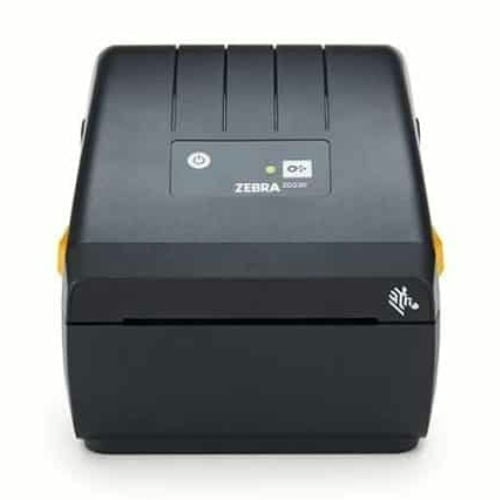
ZD22042-D0EG00EZZebra ZD220d ZD22042-D0EG00EZ - imprimanta de etichete, termica directa, rezolutie: 8 puncte/mm (203 dpi), latime suport (max.): 112 mm, latime tiparire (max.): 104 mm, diametru…
ZD22042-D1EG00EZZebra ZD220d ZD22042-D1EG00EZ - imprimanta de etichete, termica directa, rezolutie: 8 puncte/mm (203 dpi), latime suport (max.): 112 mm, latime tiparire (max.): 104 mm, diametru…
P1080383-224Kit rulmenți Zebra P1080383-224 pentru rola platan ZD220D&T, ZD230D&T, ZD888D&T, ZD420D&T, ZD620D&T. Conține 10 rulmenți stânga/dreapta. Performanță și durab…
P1080383-231Kit adaptor Ribbon Zebra P1080383-231 pentru role ribbon 1 inch. Compatibil cu imprimante ZD230T, ZD888T, ZD420T, ZD620T. Flexibilitate și instalare ușoară.
P1080383-700Kit rola platan Zebra P1080383-700 pentru ZD220/ZD230/ZD888. Include rulmenți, asigură imprimare precisă și durabilă. Ideal pentru medii comerciale și industriale.
105950-030Pachet de 5 cabluri de alimentare Zebra 105950-030, 240V UK C13, pentru alimentarea echipamentelor Zebra. Conector C13 cu 3 pini, fiabil pentru medii industriale.
P1115689Kit, 203 dpi Printhead, Qty of 1, ZD220/ZD230/ZD888 DT
P1080383-704Kit, Power Supply, 60W, 24V (power cord not included), ZD220 & ZD230 Direct Thermal and Thermal Transfer
P1080383-701Kit Adaptor Media Zebra P1080383-701 – Adaptabil la imprimantele ZD220, ZD230 și ZD888 pentru role cu miez de 1,5 inch, acest kit oferă suport stabil atât pentru imprimarea Dire…
P1080383-723Kit Ansamblu Motor Zebra P1080383-723 - Ideal pentru imprimante ZD220D&T, ZD230D&T, ZD888D&T, asigură înlocuirea rapidă a motorului pentru performanță și durabilitat…
P1080383-424Kit de transport Zebra P1080383-424 pentru imprimante ZD420D și ZD620D - Protecție și mobilitate optimă pentru aplicații mobile, ideal pentru logistică și retail.
105950-029Cablu de alimentare Zebra 105950-029 C13, 3 pini, 240V Australia. Set de 5 bucăți, compatibil imprimante Zebra. Siguranță și fiabilitate garantată.
P1061022-020Cablu alimentare Zebra P1061022-020 IEC C13 10A, standard Israel. Set de 5 bucăți, compatibil imprimante Zebra. Siguranță și durabilitate garantată.
105950-014Cablu alimentare Zebra 105950-014 IEC320C13, 120V US. Set de 5 bucăți, compatibil imprimante Zebra. Siguranță și fiabilitate garantată.
105950-015Cablu de alimentare Zebra 105950-015, 220V, tip Euro IEC320C13, set de 5 cabluri. Compatibil pentru dispozitive europene, ideal pentru medii industriale.
P1115687Kit, 203 dpi Printhead, Qty of 10, ZD220/ZD230/ZD888 DT
P1080383-710Kit, ansamblu capac pentru modele de culoare alba, ZD220D, ZD230D, ZD888D
P1080383-709Kit, ansamblu capac pentru modele de culoare gri, ZD220D, ZD230D, ZD888D
P1112640-007Kit, ansamblu zavor pentru modele standard, ZD421D
P1080383-715Kit Capac Balama Zebra P1080383-715 pentru imprimante ZD220D, ZD230D, ZD888D. Protejează mecanismul de balama, durabil și ușor de instalat. Ideal industrial.
P1080383-713Kit, capac interior fara Capete de imprimare pentru modele de culoare alba, ZD220D, ZD230D, ZD888D
P1080383-712Kit, capac interior fara Capete de imprimare pentru modele de culoare gri, ZD220D, ZD230D, ZD888D
P1080383-725Kit, dozator de schimb, acest articol este doar pentru inlocuirea unui dozator instalat din fabrica, ZD220D, ZD230D, ZD888D
P1080383-716Kit, mecanism de imprimare, ZD220D, ZD230D, ZD888D
P1080383-711Kit, PCBA pentru panoul de control, ZD220D&T, ZD230D&T, ZD888D&T
P1080383-021Kit picioare din cauciuc Zebra P1080383-021, set 4 bucăți. Compatibil ZD410D, ZD220, ZD230, ZD888, ZD420, ZD620. Stabilitate și protecție sporită.
P1080383-732Kit, placa logica principala cu USB, ZD220D&T
P1080383-707Kit, placuta de identificare, ZD220D&T
P1080383-717Kit, senzor cap deschis, ZD220D, ZD230D, ZD888D
P1080383-714Kit Senzor Decalaj Media Superior Zebra P1080383-714 – Compatibil cu imprimantele ZD220D, ZD230D și ZD888D, acest senzor îmbunătățește detectarea decalajelor media pentru o impr…
P1080383-718Kit Senzor Media Inferior Zebra P1080383-718 pentru ZD220D, ZD230D și ZD888D - Detectare precisă a media, optimizare a aliniamentului etichetelor, ideal pentru producție și logi…
P1080383-724Kit, taietor de inlocuire, acest articol este doar pentru inlocuirea unui taietor instalat din fabrica, ZD220D, ZD230D, ZD888D
P1115688Optimizați costurile de imprimare și îmbunătățiți performanța cu Pachetul de 10 Capete de Imprimare Zebra P1115688 (203 dpi) pentru imprimantele ZD220, ZD230 și ZD888 TT.
P1080383-703Kit, Platen Roller with bearings, ZD220, ZD230, ZD888 Thermal Transfer
P1080383-746Kit, Replacement Dispenser, this item is only for replacing a factory installed dispenser, ZD220D, ZD230D, ZD888D
Z1AV-DESK-2Zebra OneCare, SValue, Purchased within 30 days of Printer, 5 Day TAT, Applicable to Desktop GC, GK, GT, LP/TLP, ZD120, ZD4 Series, 2 Years, Non-Comprehensive
Z1A5-DESK-3Zebra OneCare TSS 3 ani pentru imprimante desktop. Suport tehnic 8x5 și actualizări software complete. Soluție ideală pentru performanță și fiabilitate pe termen lung.
Z1AE-ZD220-300Zebra OneCare, Essential, Purchased within 30 days of Printer, 3 Day TAT, ZD220, 3 Years, Non-Comprehensive
Z1AE-ZD220-500Zebra OneCare, Essential, Purchased within 30 days of Printer, 3 Day TAT, ZD220, 5 Years, Non-Comprehensive
Z1RV-DESK-1Zebra OneCare, SValue, Renewal, 5 Day TAT, Applicable to Desktop GC, GK, GT, LP/TLP, ZD120, ZD4 Series, 1 Years, Non-Comprehensive
Z1AV-DESK-3Zebra OneCare, SValue, Purchased within 30 days of Printer, 5 Day TAT, Applicable to Desktop GC, GK, GT, LP/TLP, ZD120, ZD2x0, ZD888, ZP888 ZD4 Series, 3 Years, Non-Comprehensive
Z1A5-DESK-1Zebra OneCare TSS 1 an pentru imprimante desktop. Suport tehnic 8x5 și update-uri software complete. Contract de service pentru performanță constantă.
Z1B5-DESK-1Zebra OneCare TSS 1 an pentru imprimante desktop pre-owned. Suport tehnic 8x5 și update-uri software complete. Contract dedicat echipamentelor recondiționate.
Z1R5-DESK-1Zebra OneCare TSS 1 an pentru imprimante desktop. Reînnoire contract cu suport tehnic 8x5 și actualizări software complete pentru performanță optimă.
Z1R5-DESK-2Zebra OneCare TSS 2 ani pentru imprimante desktop. Suport tehnic 8x5 și update-uri software complete. Reînnoire contract pentru performanță optimă.
Z1B5-DESK-3Zebra OneCare TSS 3 ani pentru imprimante desktop pre-owned. Suport tehnic 8x5 și update-uri software complete. Contract dedicat echipamentelor recondiționate.
Z1A5-DESK-5Zebra OneCare TSS 5 ani pentru imprimante desktop. Suport tehnic 8x5 și update-uri software complete. Soluție fiabilă și economică pentru performanță constantă.
SW-NUCLEUS-1YRSW-NUCLEUS-1YR este licența Zebra Nucleus pentru 1 an, per dispozitiv Zebra eligibil. Include licență software și Standard Service Tech Support.
P1109020Licență Zebra Designer 3 PRO P1109020, software avansat pentru design etichete, suport baze de date și scriptare. Ideal pentru gestionare etichete industriale.
48735-120ZebraNet Bridge Enterprise, gestionare centralizată pentru 100+ imprimante Zebra, eficiență și productivitate crescută, configurare și monitorizare ușoară.
P1109127Licență Zebra Designer PRO 3 P1109127, activare 1 PC, livrare prin e-mail. Software avansat pentru design etichete, suport baze de date și scriptare.
SW-NUCLEUS-5YRSW-NUCLEUS-3YR este licența Zebra Nucleus pentru 3 ani, per dispozitiv Zebra eligibil. Include licență software și Standard Service Tech Support.
SW-NUCLEUS-3YRSW-NUCLEUS-5YR este licența Zebra Nucleus pentru 5 ani, per dispozitiv Zebra eligibil. Include licență software și Standard Service Tech Support.
P1094901Zebra P1094901 – licență perpetuă Printer Profile Manager Enterprise pentru până la 25 de imprimante. Gestionare centralizată eficientă și sigură.
P1094902Zebra P1094902 – licență perpetuă Printer Profile Manager Enterprise pentru până la 50 de imprimante. Soluție avansată de administrare centralizată.
48734-120ZebraNet Bridge Enterprise 48734-120 – software pentru gestionarea centralizată a 1–100 imprimante Zebra. Administrare de la distanță eficientă și sigură.
CAG-P1078576Zebra CAG-P1078576 – PDF Direct Virtual Device, 1 licență activare prin e-mail, imprimare directă fișiere PDF pe Zebra.
48733-120ZebraNet Bridge Enterprise software, gestionează până la 50 imprimante Zebra, configurare și monitorizare centralizată, crește productivitatea și eficiența.
800132-002Zebra 800132-002 este un ribon de ceară 5319 Performance pentru imprimare prin transfer termic, cu dimensiunea de 57 mm x 74 m și miez de 12 mm. Formula 5319 este optimizată pen…
05095GS11007Ribon de rășină Zebra 5095 110mm x 74m, 12mm (0.5in) core, performanță înaltă pentru etichetare rezistentă la chimicale și abraziune. Compatibil cu imprimante desktop Zebra. 12 …
02300GS06407Ribon de ceară Zebra 2300 Standard 64mm x 74m, miez 12 mm, 12 role/cutie, pentru imprimante Zebra, etichete de hârtie și aplicații logistice.
02300GS11007Zebra 02300GS11007 – ribbon ceară 110mm x 74m, nucleu 12mm, compatibil Zebra ZD421, ZD420, GK420t. Ideal pentru etichete hârtie, aplicații standard.
800264-305Etichete hârtie 102x76mm, 25mm core, Z-Select 2000D Zebra 800264-305, direct termic, acoperite, adeziv permanent, perforate, 930 etichete/rolă, 12 role/cutie. Ideal pentru etich…
03300GS06407Ribon Zebra 03300GS06407, Ceară/Rășină, 64mm x 74m, High Performance, 12mm nucleu, 12 role/cutie. Ideal pentru imprimare clară și rezistentă pe hârtie și etichete sintetice.
800132-102Zebra 800132-102 - Ribon de ceară/rășină, 56mm x 74m (2,2inx242ft), 3200; Înaltă performanță, miez de 12 mm (0,5 inchi)
800263-105Etichete hârtie 76 x 25mm, 25mm core, Zebra Z-Select 2000D, Zebra 800263-105, direct termic, adeziv permanent, perforare, 2580 etichete/rolă, 12 role/cutie. Ideal pentru etichet…
800132-201Ribon de rășină, 33mm x 74m (1,3inx242ft), 5095; Înaltă performanță, miez de 12 mm (0,5 inchi)
3006628Etichete sintetice Zebra 3006628, 70 x 32mm, 25mm Core, poliester argintiu, transfer termic, adeziv permanent, 12 role/cutie, ideale pentru etichetarea industrială și de produse…
3006493Etichete Zebra Z-Ultimate 3000T Silver 38x19 mm, 25mm Core, poliester argintiu, transfer termic, adeziv permanent. 3.720 etichete/rolă, 12 role/cutie.
800262-127Etichete hârtie Zebra Z-Select 2000D 57x32mm, DT, adeziv detașabil, 2100 etichete/rolă, 12 role/cutie. Ideal pentru retail, logistică și etichetare temporară.
800263-205Etichete hârtie Zebra Z-Select 2000D 76x51mm, DT, adeziv permanent, 1370 etichete/rolă, 12 role/cutie. Ideal pentru logistică, retail și transport.
02300CT11007Zebra 02300CT11007 - Cartuș Ribon de ceară, 110mm x 74m (4,33inx242ft), 2300; Standard
800264-155Etichete hârtie Zebra Z-Select 2000D 102x38mm, DT, adeziv permanent, 1790 etichete/rolă, 12 role/cutie. Ideal pentru logistică, retail și etichetare transport.
05095GS06407Ribon rășină Zebra 5095 High Performance 64mm x 74m, miez 12 mm, 12 role/cutie, pentru etichete sintetice rezistente la condiții industriale.
03200GS06407Ribon Zebra 03200GS06407 Premium Wax/Resin, 64mm x 74m, 12.7mm core. 12 role/cutie. Compatibil imprimante desktop Zebra, etichete hârtie și sintetice.
800261-107Etichete hârtie Zebra Z-Select 2000D 38x25mm, DT, adeziv detașabil, 2580 etichete/rolă, 12 role/cutie. Ideal pentru retail, logistică și etichetare temporară.
800274-105Etichete hârtie 102 x 25mm, 25mm core, Zebra Z-Select 2000T, Zebra 800274-105, transfer termic, adeziv permanent, perforate, 2580 etichete/rolă, 12 role/cutie. Ideal pentru expe…
3017015Etichete sintetice CryoCool 8100T Zebra (3017015), 51 x 25 mm, core 25 mm, poliester, adeziv permanent, rezistente la temperaturi extrem de scăzute de până la -196°C, ideale pen…
03200GS11007Ribon Ceară/Rășină Zebra 03200GS11007, 110mm x 74m, pentru imprimare de înaltă performanță. Oferă calitate superioară, rezistență la abraziune și durabilitate pentru aplicații i…
800284-605Etichete hârtie 102 x 152 mm, 25 mm core, Zebra Z-Perform 1000D, Zebra 800284-605, direct termic, adeziv permanent, perforate, 475 etichete/rola, 12 role/cutie. Ideal pentru eti…
02300GS08407Ribon Zebra 02300GS08407 Wax, 84mm x 74m, 12.7mm core. 12 role/cutie. Ideal pentru etichete de hrtie, retail, logistică și coduri de bare.
800262-125Etichete hârtie 57.2 x 31.8mm, 25.4mm core, Zebra Z-Select 2000D, High Performance Coated, Zebra 800262-125, direct termic, adeziv All-Temp, 2100 etichete/rolă, 12 role/cutie. I…
800264-605Etichete termice directe Zebra Z-Select 2000D 102x152mm, core de 25mm, hârtie acoperită, adeziv permanent, perforație, ideale pentru logistică, transport și inventar.
3006322Etichete hârtie 102 x 152mm, 25mm core, Zebra Z-Select 2000T, Zebra 3006322, transfer termic, adeziv permanent, perforate, 475 etichete/rolă, 12 role/cutie. Ideal pentru expedie…
03200GS08407Ribon Zebra 03200GS08407 Premium Wax/Resin, 84mm x 74m, 12.7mm core. 12 role/cutie. Compatibil imprimante desktop Zebra, etichete hârtie și sintetice.
800440-314Rola hârtie termică Zebra 800440-314, 102mm x 100m, Z-Perform 1000D. Imprimare directă, calitate superioară, nucleu 25mm, ideală pentru retail și logistică.
800294-605Etichete hârtie 102x152mm Z-Perform 1000T Zebra 800294-605, transfer termic, adeziv permanent, 25mm core, perforate, 475 etichete/rolă, 12 role/cutie, pentru imprimante desktop.
800273-205Etichete hârtie 76 x 51mm, 25mm core, Zebra Z-Select 2000T, Zebra 800273-205, transfer termic, adeziv permanent, perforate, 1370 etichete/rolă, 12 role/cutie.
87000Etichete hârtie 100x50mm, 25mm core, Z-Select 2000D Zebra 87000, direct termic, acoperite, adeziv permanent, 1300 etichete/rolă, 4 role/cutie. Ideal pentru etichetare retail și …
800274-205Etichete hârtie 102 x 51mm, 25mm core, Zebra Z-Select 2000T, Zebra 800274-205, transfer termic, adeziv permanent, perforate, 1370 etichete/rolă, 12 role/cutie.
800261-105Etichete hârtie Zebra Z-Select 2000D 32x25mm, DT, adeziv permanent, 2580 etichete/rolă, 12 role/cutie. Ideal pentru retail, logistică și etichetare produse mici.
800283-205Etichete hârtie 76 x 51 mm, 25 mm core, Zebra Z-Perform 1000D, Zebra 800283-205, direct termic, adeziv permanent, perforate, 1370 etichete/rola, 12 role/cutie. Ideal pentru etic…
800262-405Etichete hârtie 57 x 102mm, 25mm core, Zebra Z-Select 2000D, Zebra 800262-405, direct termic, adeziv permanent, acoperite, perforare, 700 etichete/rolă, 12 role/cutie. Ideal pen…
3006319Etichete hârtie 102 x 38mm, 25mm core, Zebra Z-Select 2000T, Zebra 3006319, transfer termic, adeziv permanent, perforate, 1790 etichete/rolă, 12 role/cutie. Ideal pentru expedie…
03300CT11007Ribon Ceară/Rășină Zebra 03300CT11007, 110mmx74m, 3300. Calitate superioară pentru imprimare termică. Rezistent și eficient, ideal pentru etichete industriale.
800294-305Etichete hârtie 102x76mm Z-Perform 1000T Zebra 800294-305, transfer termic, adeziv permanent, 25mm core, perforate, pentru imprimante desktop.
3006320Etichete hârtie 102 x 76mm, 25mm core, Zebra Z-Select 2000T, Zebra 3006320, transfer termic, adeziv permanent, perforate, 930 etichete/rolă, 12 role/cutie. Ideal pentru expedier…
880191-076DEtichete hârtie 101.6 x 76.2 mm, 25 mm core, Zebra Z-Perform 1000D, Zebra 880191-076D, direct termic, adeziv permanent, 930 etichete/rola, 12 role/cutie. Ideal pentru etichetare…
04800CT11007Ribbon rășină Zebra 4800 04800CT11007, 110mm x 74m, cartridge. Rezistent la abraziune și chimicale, ideal pentru etichete industriale. 6 role/cutie.
3006318Etichete hârtie 57 x 32mm, 25mm core, Zebra Z-Select 2000T, Zebra 3006318, transfer termic, adeziv permanent, perforate, 2100 etichete/rolă, 12 role/cutie.
800272-075Etichete hârtie 57 x 19mm, 25mm core, Zebra Z-Select 2000T, Zebra 800272-075, transfer termic, adeziv permanent, perforate, 3315 etichete/rolă, 12 role/cutie.
800264-255Etichete hârtie 102x64mm, 25.4mm core, Z-Select 2000D Zebra 800264-255, direct termic, acoperite, adeziv permanent, perforate, 1100 etichete/rolă, 12 role/cutie. Ideal pentru et…
800262-205Etichete hârtie 57 x 51mm, 25mm core, Zebra Z-Select 2000D, Zebra 800262-205, direct termic, adeziv permanent, perforare, 1370 etichete/rolă, 12 role/cutie. Ideal pentru retail …
800132-202Ribon Rășină Zebra 800132-202, 56mm x 74m, core 12 mm, pentru imprimare termică de înaltă performanță. Rezistent la zgârieturi și substanțe chimice, ideal pentru aplicații indus…
3006321Etichete hârtie 102 x 102mm, 25mm core, Zebra Z-Select 2000T, Zebra 3006321, transfer termic, adeziv permanent, perforate, 700 etichete/rolă, 12 role/cutie. Ideal pentru expedie…
880239-076DZebra Z-Select 2000D, rolă de etichete, hârtie termică, strat premium, detașabilă, pentru imprimante desktop, miez: 25,4mm, diametru: 127mm, dimensiuni (LxH): 102x76mm, 930 etic…
10018856Brățări Zebra Z-Band UltraSoft 10018856, 25.4 x 279.4mm, core 25.4mm, 6 role/cutie, sintetice, direct termic, adeziv permanent - ideale pentru spitale și evenimente, confortabil…
3012884-TEtichete hârtie 102 x 203 mm, 25 mm core, Zebra Z-Perform 1000D, Zebra 3012884-T, direct termic, adeziv permanent, 350 etichete/rola, 12 role/cutie. Ideal pentru etichetare gene…
800271-105Etichete de hârtie Z-Select 2000T Zebra 800271-105, 31x25mm, 25.4 mm Core, Perforat, Transfer termic (necesită ribon), Adeziv Permanent, ideale pentru retail și aplicații logist…
880191-101DEtichete hârtie 102 x 102 mm, 25 mm core, Zebra Z-Perform 1000D, Zebra 880191-101D, direct termic, adeziv permanent, 700 etichete/rola, 12 role/cutie. Ideal pentru etichetare ge…
800264-405Etichete hârtie 102x102mm, 25mm core, Z-Select 2000D Zebra 800264-405, direct termic, acoperite, adeziv permanent, perforate, 700 etichete/rolă, 12 role/cutie. Ideal pentru etic…
3007207Etichete hârtie 25 x 76mm, 25mm core, Zebra Z-Select 2000D, Zebra 3007207, direct termic, adeziv permanent, perforare, 930 etichete/rolă, 12 role/cutie. Ideal pentru retail și a…
800999-009Etichete hârtie 57x35mm Zebra 800999-009, Z-Select 2000D, imprimare direct termică. Calitate superioară, nucleu 25mm, ideale pentru retail, logistică și depozitare.
800264-505Zebra 800264-505 - Etichetă, hârtie, 102x127mm; Termic direct, Z-Select 2000D, acoperit, adeziv permanent, miez de 25 mm, perforare
03300GS11007Ribon Zebra 03300GS11007 Wax/Resin, 110mm x 74m, 12.7mm core. 12 role/cutie. Imprimare clară și rezistentă pentru etichete hârtie și sintetice.
800262-075Etichete hârtie 57 x 19mm, 25mm core, Zebra Z-Select 2000D, Zebra 800262-075, direct termic, adeziv permanent, acoperite, perforare 3315 etichete/rolă, 12 role/cutie. Ideal pent…
800273-105Etichete hârtie 76.2 x 25.4mm, 25mm core, Zebra Z-Select 2000T, Zebra 800273-105, transfer termic, adeziv permanent, perforate, 2580 etichete/rolă, 12 role/cutie.
880191-038DEtichete hârtie 102 x 38 mm, 25 mm core, Zebra Z-Perform 1000D, Zebra 880191-038D, direct termic, adeziv permanent, 1790 etichete/rola, 12 role/cutie. Ideal pentru etichetare ge…
800999-005Etichete Hartie 32x57mm Z-Select 2000D Zebra, termic direct, hârtie acoperită, miez 25mm, cu gaură. Ideal pentru retail, depozitare și logistică.
800294-155Etichete hârtie 102x38mm Z-Perform 1000T Zebra 800294-155, transfer termic, adeziv permanent, 25mm core, perforate, pentru imprimante desktop.
02300GT11030Ribbon ceară Zebra 02300GT11030, 110mm x 300m, compatibil cu GT800. Calitate excelentă a imprimării, miez de 25mm, ambalare 12 role/cutie.
10005008Brățări de imprimantă Zebra Z-Band Direct 10005008, 25.4 x 279.4mm, core 25.4mm, 200 bratari/rola, 6 role/cutie, polipropilenă, alb - Pentru identificare pacient și acces la eve…
10012712-3Brățări imprimantă Z-Band Fun Albastru Zebra 10012712-3, 25.4 x 254mm, core 25.4mm, termice directe, închidere adezivă, 350/rolă, 4 role/cutie. Soluția ideală pentru evenimente …
3012964Etichete sintetice 102x152mm, 25mm core, PolyPro 3000T Gloss, Zebra 3012964, transfer termic, polipropilenă albă lucioasă, adeziv permanent, ideale pentru etichetarea industrial…
87604Etichete hârtie 102 x 102 mm, 25 mm core, Zebra Z-Perform 1000T, Zebra 87604, transfer termic, adeziv permanent, 662 etichete/rolă, 12 role/cutie. Ideal pentru etichetare ambala…
800264-105Etichete hârtie 102x25mm, 25.4mm core, Z-Select 2000D Zebra 800264-105, direct termic, acoperite, adeziv permanent, perforate, 2580 etichete/rolă, 12 role/cutie. Ideal pentru et…
800999-020Etichete hârtie termică Zebra Z-Select 2000D 800999-020, 102x76mm, 190 etichete/rolă, core 25mm. Ideal pentru etichetare produse, logistică și depozitare.
3010793Etichete sintetice 102x51mm, 25mm core, PolyPro 3000T Gloss, Zebra 3010793, transfer termic, polipropilenă albă lucioasă, adeziv permanent, ideale pentru etichetarea industrială…
03300GS08407Ribon Zebra 03300GS08407 Wax/Resin, 84mm x 74m, 12.7mm core. 12 role/cutie. Ideal pentru etichete hârtie și sintetice, imprimare clară și rezistentă.
800274-505Etichete hârtie 102 x 127mm, 25mm core, Zebra Z-Select 2000T, Zebra 800274-505, transfer termic, adeziv permanent, perforate, 565 etichete/rolă, 12 role/cutie. Ideal pentru expe…
05095ZD25707Resin Ribbon, 57mmx74m (2.24inx242ft), 5095; High Performance, 12mm (0.5in) core
3011715Etichete Zebra PolyE 3100T Gloss 51x25 mm, 25mm Core, polietilenă lucioasă, transfer termic, adeziv permanent. 2.398 etichete/rolă, 12 role/cutie.
10012712-2Brățări Zebra Z-Band Fun galbene 25,4×254mm, DT, adeziv permanent, ideale pentru evenimente de o zi. 350/rolă, 4 role/cutie. Compatibile imprimante Zebra.
10010065Etichete bijuterii Zebra 8000D - Polipropilenă, 55,6 x 12,7 mm, imprimare direct termică, adeziv permanent. Etichete rezistente și elegante pentru etichetarea bijuteriilor. 3510…
3010066-TEtichete hârtie 101.6 x 158.8 mm, 25.4 mm core, Zebra Z-Perform 1000D, Zebra 3010066-T, direct termic, adeziv permanent, 440 etichete/rola, 4 role/cutie. Ideal pentru etichetare…
3017014Etichete sintetice Zebra 8100T CryoCool, Zebra 3017014, 30x15mm, 25.4mm core, adeziv permanent, rezistente la temperaturi extreme de până la -196°C. Ideal pentru aplicații cu az…
87443Etichete sintetice Zebra 87443, 76.2mm x 76.2mm, 25.4mm core, poliester alb lucios, transfer termic, adeziv permanent, 12 role/cutie, compatibile cu imprimante desktop Zebra, re…
3012883-TEtichete hârtie 102 x 178 mm, 25 mm core, Zebra Z-Perform 1000D, Zebra 3012883-T, direct termic, adeziv permanent, 400 etichete/rola, 12 role/cutie. Ideal pentru etichetare gene…
10012712-4Brățări Zebra Z-Band Fun verzi 25,4×254mm, DT, adeziv permanent, rezistente și sigure. 350/rolă, 4 role/cutie. Ideale pentru evenimente și agrement.
800420-314Rola hârtie termică Zebra 800420-314, 51mm x 100m, Direct Thermal, Z-Perform 1000D, neacoperită, nucleu 25mm. Perfectă pentru bonuri, chitanțe și etichete.
3011718Etichete sintetice 102x76mm, 25mm core, PolyE 3100T Gloss, Zebra 3011718, transfer termic, polietilenă lucioasă, adeziv permanent, ideale pentru etichetare pe suprafețe curbe și…
3017016Etichete sintetice Zebra 8100T CryoCool, 38x13 mm, core 25mm, poliester, adeziv permanent, transfer termic. Rezistente la temperaturi criogenice.
3011159Etichete sintetice 51x25mm, 25mm core, PolyPro 3000T Gloss, Zebra 3011159, transfer termic, polipropilenă albă lucioasă, adeziv permanent, ideale pentru etichetare industrială ș…
10012712-6Brățări imprimantă Z-Band Fun Portocaliu Zebra 10012712-6, 25.4 x 254mm, core 25.4mm, termice directe, închidere adezivă, 350/rolă, 4 role/cutie. Perfecte pentru evenimente mari…
10012712-7Brățări imprimantă Z-Band Fun Mov Zebra 10012712-7, 25.4 x 254mm, core 25.4mm, termice directe, închidere adezivă, 350/rolă, 4 role/cutie. Ideale pentru evenimente și parcuri te…
3004428Etichete sintetice 75x35mm, 25mm core, PolyPro 3000T Clear, Zebra 3004428, transfer termic, polipropilenă transparentă lucioasă, adeziv permanent, cu marcaj negru. 1760 etichete…
10010064Etichete termice directe Zebra 8000D Jewelry, Zebra 10010064 55.6 x 12.7mm, 25.4mm core, polipropilenă albă, rezistente la UV, ideale pentru etichetarea bijuteriilor. Adeziv per…
74941Resin Ribbon, 64mmx74m (2.52inx242ft), Image Lock; Image Lock, 12mm (0.5in) core, 12/box
05319BK10245Ribon ceară Zebra 5319, 102mm x 450m, print economic și clar pe hârtie, miez 25mm, 6 role/cutie. Ideal pentru aplicații standard de etichetare.
10012718-6Brățări Zebra Z-Band Splash portocalii 25,4×254mm, DT, adeziv permanent, black mark sensing. 350/rolă, 4 role/cutie. Compatibile imprimante Zebra DT.
10012712-1Brățări imprimantă Z-Band Fun Roșu Zebra 10012712-1, 25.4 x 254mm, core 25.4mm, termice directe, închidere adezivă, 350/rolă, 4 role/cutie. Ideal pentru evenimente și parcuri te…
10012712-5Brățări Zebra Z-Band Fun roz 25,4×254mm, DT, adeziv permanent, rezistente și atractive. 350/rolă, 4 role/cutie. Ideale pentru evenimente și festivaluri.
10027730KBrățări Z-Band Quickclip Zebra 10027730K, 30.2x279.4mm, core 25.4mm, sintetic, sistem QuickClip. 240 brățări/rolă. Ideale pentru identificare rapidă în spitale și evenimente.
10006995-3KBrățări imprimantă Z-Band D Verde Zebra, polipropilenă 1x11 inch (25.4x279.4 mm), imprimare termică directă, Cartuș 200 brățări/rolă, 6 role/cutie, ideale pentru identificare si…
10012718-4Brățări Zebra Z-Band Splash verzi 25,4×254mm, DT, adeziv permanent, black mark sensing. 350/rolă, 4 role/cutie. Compatibile imprimante Zebra DT.
3017127Etichete Zebra 8000T Blood Bag 105x105mm, transfer termic, polietilenă, adeziv permanent, rezistente la îngheț. 543 etichete/rolă, 4 role/cutie.
02300ZD25707Wax Ribbon, 57mmx74m (2.24inx242ft), 2300; Standard, 12mm (0.5in) core
10012718-2Brățări Zebra Z-Band Splash galbene 25,4×254mm, DT, adeziv permanent, black mark sensing. 350/rolă, 4 role/cutie. Compatibile imprimante Zebra DT.
3012962Etichete sintetice 55x35mm, 25mm core, PolyPro 3000T Clear, Zebra 3012962, transfer termic, polipropilenă transparentă, adeziv permanent, ideale pentru etichetare industrială și…
10031296Brățări Zebra Z-Band UltraSoft 19,05×152,4mm albe, extra moi, DT, adeziv permanent. 300/rolă, 6 role/cutie. Confort și siguranță pentru pacienți.
10003852Brățări Zebra Z-Band Direct albe 25,4×177,8mm, DT, adeziv permanent. 300/rolă, 6 role/cutie. Brățări medicale sigure, compatibile imprimante Zebra.
01600CT11007Ribbon Ceară 110mm x 74m 1600 Zebra, economic și ușor de utilizat. Panglică pe cartuș pentru imprimare pe hârtie mată. Ambalare: 6 role/cutie.
10006995-6KBrățări imprimantă Z-Band D Portocaliu Zebra, polipropilenă 1x11 inch (25.4x279.4 mm), imprimare termică directă, Cartuș 200 brățări/rolă, 6 role/cutie, ideale pentru identifica…
10035358-M2KWRISTBAND, SYNTHETIC, 1X22IN (25.4X558.8MM); DT, Z BAND ULTRA SOFT MATERNITY ID, MOTHER/2XBABY, COATED, PERMANENT ADHESIVE, CARTRIDGE, 89/ROLL, 6/BOX
FID-ADULT-L3-1-200TBrățări Zebra Z-Band Fusion albe 76×279mm, DT, PolyPro/PET, rezistente și sigure. 200/rolă, 5 role/cutie. Ideale pentru spitale și evenimente.
10006995-4KBrățări imprimantă Z-Band D Mov Zebra, polipropilenă 1x11 inch (25.4x279.4 mm), imprimare termică directă, Cartuș 200 brățări/rolă, 6 role/cutie, ideale pentru identificare sigu…
10006995-7KBrățări imprimantă Z-Band D Galben Zebra, polipropilenă 1x11 inch (25.4x279.4 mm), imprimare termică directă, 200 brățări/rolă, 6 role/cutie, ideale pentru identificare sigură ș…
15997Core Ribbon Zebra 15997 (10 buc). Accesorii originale pentru imprimante desktop Zebra TT. Compatibil cu ZD220t, ZD230t, GK420t, ZD421, ZD621 etc.
10012718-3Brățări Zebra Z-Band Splash albastre 25,4×254mm, DT, adeziv permanent, black mark sensing. 350/rolă, 4 role/cutie. Pentru spitale și evenimente.
3008426Etichete sintetice Zebra 3008426, 102x102mm, 25mm Core, 8000T BloodBag, polipropilenă mată, adeziv permanent, special concepute pentru etichetarea pungilor de sânge, 4 role per …
3017017Etichete sintetice Zebra CryoCool 8100T, 32x25 mm, 25mm Core, pentru temperaturi extreme. Transfer termic, adeziv permanent, 2 role/cutie, 2700 etichete/rolă.
3012949Etichete Zebra 3012949 – 51x25mm, PolyPro 3000T Gloss, polipropilenă lucioasă, termotransfer, adeziv permanent, 2 role x 6380 etichete, miez 76mm.
10004443-1Brățări Zebra 10004443-1 Z-Band Direct, 25.4x279.4mm, 25.4 mm Core, termic direct, roșii, adeziv permanent. 200/rolă, 6 role/cutie. Identificare sigură și rapidă.
10006995-5KBrățări imprimantă Z-Band D Roz Zebra, polipropilenă 1x11 inch (25.4x279.4 mm), imprimare termică directă, 200 brățări/rolă, 6 role/cutie, ideale pentru identificare sigură și e…
10006999-RKBrățări imprimantă Z-Band Roșu Zebra, 1x7 inch (25.4x177.8mm), polipropilenă, imprimare termică, 300 brățări/rolă, 6 role/cutie, ideale pentru identificare sigură.
10003853Brățări Zebra Z-Band Direct albe 25,4×152,4mm, polipropilenă, DT, adeziv permanent, black mark sensing. 350/rolă, 6 role/cutie. Compatibile Zebra DT.
10018857Brățări Zebra Z-Band UltraSoft pediatrice albe 25,4×177,8mm, DT, cu sigiliu de siguranță. 250/rolă, 6 role/cutie. Confortabile și sigure pentru copii.
10012718-5Brățări Zebra Z-Band Splash roz 25,4×254mm, DT, adeziv permanent, black mark sensing. 350/rolă, 4 role/cutie. Compatibile imprimante Zebra DT.
10012718-7Brățări Zebra Z-Band Splash mov 25,4×254mm, DT, adeziv permanent, black mark sensing. 350/rolă, 4 role/cutie. Ideale pentru spitale și evenimente.
10012718-1Brățări Zebra Z-Band Splash roșii 25,4×254mm, DT, adeziv permanent rezistent la apă, utilizare multi-day. 350/rolă, 4 role/cutie. Compatibile Zebra DT.
10018856-RBrățări Zebra Z-Band UltraSoft roșii 25,4×279,4mm, DT, adeziv permanent, confortabile și rezistente. 175/rolă, 6 role/cutie. Compatibile Zebra DT.
10027728KBrățări Zebra Z-Band QuickClip albe 30,2×279,4mm, sistem de prindere rapidă, DT, rezistente. 240/rolă, 6 role/cutie. Compatibile imprimante Zebra.
10007909Brățări Zebra Z-Band Soft copii albe 50,8×177,8mm, DT, material sintetic moale, sigure și confortabile. 275/rolă, 6 role/cutie. Compatibile Zebra DT.
FID-BABY-L3-1-200TBrățări Zebra Z-Band Fusion albe pentru nou-născuți, 76×279mm, cu etichetă și închidere adezivă. 200/rolă, 5 role/cutie. Compatibile imprimante Zebra DT.
FID-PED-L3-1-200TBrățări Zebra Z-Band Fusion pediatrice albe 76×279mm, cu etichetă și închidere adezivă. 200/rolă, 5 role/cutie. Compatibile imprimante Zebra DT.
FID-BABY-L3-1-200T-REDBrățări Zebra Z-Band Fusion 76×279mm roșii pentru nou-născuți, cu etichetă și închidere adezivă. 200/rolă, 5 role/cutie. Compatibile imprimante Zebra DT.
FID-PED-L3-1-200T-REDBrățări Zebra Z-Band Fusion pediatrice 76×279mm roșii, cu etichetă și închidere adezivă. 200/rolă, 5 role/cutie. Compatibile imprimante Zebra DT.
3013593Etichete hârtie Zebra 8000D Linerless 100mm x 89m, DT, adeziv permanent. Role linerless, 8 role/cutie. Soluție eco pentru retail și logistică.
ZIPSHIPKIT1Pachet Zebra ZipShipKit1: 3 role etichete Z-Select 2000T + 3 role ribon 2300 Wax. 930 etichete/rolă. Ideal pentru etichetare termotransfer durabilă și clară.
LRDOC-WHITEKit etichete Z-Select 2000T și ribbon 3200 ceară/rasină Zebra LRDOC-WHITE pentru imprimante termice de 4 inchi. Ideal pentru medii industriale și comerciale.
01942-112ZReceipt, Paper, 112mmx250m; Direct Thermal, Z-Select 2000D 60 Receipt, Coated, 25mm Core,
ZIPSHIPKIT4Kit Zebra ZipShip: 1 rolă etichete Z-Ultimate 3000T 51x25mm 880247-025D + 1 ribon rășină 5095 05095GS06407. Etichetare durabilă, clară, ideală pentru aplicații industriale.
LRDOC-CLEARKit Zebra LRDOC-CLEAR: 3 role etichete transparente PolyPro 3000T Clear 75x35mm + 3 riboane rășină 5095. Soluție completă pentru imprimare durabilă.
ZIPSHIPKIT2Kit Zebra ZIPSHIPKIT2 cu 3 role etichete Z-Select 2000T + 3 ribboane 2300 Wax. 700 etichete/rolă. Soluție completă pentru retail, logistică și producție.
ZIPSHIPKIT3Kit Zebra ZIPSHIPKIT3 cu 3 role de etichete Z-Select 2000T și 3 role de ribon de ceară 2300. Ideal pentru imprimarea prin transfer termic, 475 etichete per rolă.
800132-001Ribbon ceară Zebra 5319, 33mm x 74m (cod 800132-001). Performanță excelentă pentru etichete clare și rezistente. Compatibil cu imprimante Zebra. Ambalare: 12 role/cutie.
03200GT11030Wax/Resin Ribbon, 110mmx300m, 3200; High Performance, 25mm core, with notches for GT800 printer, 12/box
03200ZD25707Ribon Ceară și Rășină Zebra 03200ZD25707, 57mm x 74m, core 12 mm, pentru imprimare termică de înaltă performanță. Rezistent la zgârieturi și umiditate, ideal pentru aplicații in…
800132-101Ribon Ceară și Rășină Zebra 800132-101, 33mmx74m, pentru imprimare termică de înaltă performanță. Rezistent la zgârieturi și umiditate, ideal pentru aplicații industriale și far…
15998CORES FOR TLP2824 BAG OF 10
Dacă nu găsești procedura sau resursa potrivită, echipa AutoID poate verifica modelul și SKU-ul.
Folosește „Cerere de ofertă” la produsele dorite și le vei vedea aici.
Adaugă produsele dorite și le vei vedea aici imediat.
Discută cu echipa AutoID sau folosește asistentul AI pentru documentație și suport tehnic.
Alege categoriile opționale. Cookie-urile necesare rămân active pentru funcționarea și securitatea site-ului.
Sesiune, coș, checkout, autentificare, securitate și memorarea consimțământului.
autoid_consent
AutoID
Memorează opțiunile de confidențialitate și consimțământ.autoid_consent_id
AutoID
Leagă în mod pseudonim alegerea de consimțământ din browser de dovada server-side, inclusiv pentru retragerea ulterioară a opțiunii de marketing.wp_consent_functional
WP Consent API
Memorează alegerea utilizatorului pentru categoria funcțională și permite pluginurilor compatibile să respecte consimțământul.wp_consent_preferences
WP Consent API
Memorează alegerea utilizatorului pentru categoria Preferințe.wp_consent_statistics
WP Consent API
Memorează alegerea utilizatorului pentru categoria de statistică/analiză.wp_consent_statistics-anonymous
WP Consent API
Memorează alegerea utilizatorului pentru categoria de statistică anonimă.wp_consent_marketing
WP Consent API
Memorează alegerea utilizatorului pentru categoria Marketing.woocommerce_cart_hash
WooCommerce
Detectează modificările coșului de cumpărături.woocommerce_items_in_cart
WooCommerce
Păstrează starea coșului de cumpărături.wp_woocommerce_session_*
WooCommerce
Asociază vizitatorul cu sesiunea WooCommerce și coșul său.wc_cart_created
WooCommerce
Susține funcționarea coșului WooCommerce.wc_fragments_*
WooCommerce
Susține actualizarea conținutului coșului.wordpress_logged_in_*
WordPress
Păstrează autentificarea utilizatorului.wordpress_sec_*
WordPress
Securizează sesiunea utilizatorilor autentificați.wordpress_test_cookie
WordPress
Verifică dacă browserul acceptă cookie-uri._lscache_vary
LiteSpeed Cache
Ajută cache-ul să livreze varianta corectă a paginii.litespeed_docref
LiteSpeed Cache
Susține funcționarea și optimizarea cache-ului.__cf_bm
Cloudflare
Protecție anti-bot și securitatea traficului.cf_clearance
Cloudflare
Memorează trecerea verificărilor de securitate Cloudflare.PHPSESSID
Server
Identificator tehnic de sesiune, dacă este utilizat de configurația serverului.g_state
Google Identity Services
Susține fluxul de autentificare Google atunci când este folosit.g_csrf_token
Google Identity Services
Protecție CSRF pentru autentificarea Google._GRECAPTCHA
Google reCAPTCHA
Protecție împotriva abuzului și traficului automat.Măsurarea traficului și îmbunătățirea site-ului.
_ga
Google Analytics
Distinge utilizatorii pentru măsurarea traficului._ga_*
Google Analytics
Păstrează starea sesiunii pentru o proprietate GA4._gid
Google Analytics
Identificator Analytics utilizat de unele configurații._gat*
Google Analytics
Limitează frecvența solicitărilor în unele configurații Analytics.Funcționalități și conținut opțional personalizat.
woocommerce_recently_viewed
WooCommerce
Poate memora produsele vizualizate recent pentru funcții de navigare.store_notice*
WooCommerce
Memorează dacă utilizatorul a închis un anunț al magazinului.wp-settings-*
WordPress
Păstrează preferințe ale interfeței pentru utilizatorii autentificați.wp-settings-time-*
WordPress
Păstrează momentul setării preferințelor WordPress.wp_lang
WordPress
Păstrează limba interfeței atunci când este necesar.comment_author_*
WordPress
Poate memora datele introduse la comentarii pentru confortul utilizatorului.VISITOR_PRIVACY_METADATA
YouTube
Păstrează informații privind starea de confidențialitate pentru YouTube.PREF
YouTube
Păstrează preferințe pentru conținutul YouTube.Măsurarea campaniilor, conversii și publicitate, conform alegerii tale.
sbjs_session
WooCommerce Order Attribution
Păstrează numărul de pagini vizitate în sesiune și pagina curentă pentru atribuirea sursei comenzii.sbjs_udata
WooCommerce Order Attribution
Păstrează date tehnice despre vizită, browser și dispozitiv pentru atribuirea sursei comenzii.sbjs_first
WooCommerce Order Attribution
Păstrează sursa primei vizite din sesiunea curentă pentru atribuirea comenzii.sbjs_current
WooCommerce Order Attribution
Păstrează sursa vizitei curente pentru atribuirea comenzii.sbjs_first_add
WooCommerce Order Attribution
Păstrează data, adresa de referință și pagina de intrare pentru prima vizită din sesiune.sbjs_current_add
WooCommerce Order Attribution
Păstrează data, adresa de referință și pagina de intrare pentru vizita curentă.sbjs_migrations
WooCommerce Order Attribution
Date tehnice folosite pentru compatibilitatea dintre versiunile mecanismului WooCommerce Order Attribution._gcl_au
Google Ads
Măsurarea conversiilor și atribuirea publicității._gcl_aw
Google Ads
Păstrează informații de atribuire pentru clicurile din reclame._gcl_dc
Google Ads
Măsurarea conversiilor pentru anumite configurații Google Ads/CM360._fbp
Meta
Măsurarea și atribuirea campaniilor Meta._fbc
Meta
Păstrează identificatorul clicului din campaniile Meta.YSC
YouTube
Măsurarea interacțiunii cu materialele video.VISITOR_INFO1_LIVE
YouTube
Măsurarea și furnizarea conținutului video.Lista este citită doar când deschizi setările. Cookie-urile HttpOnly și unele cookie-uri third-party nu pot fi citite de JavaScript; acestea rămân afișate în registrul declarat de mai sus.